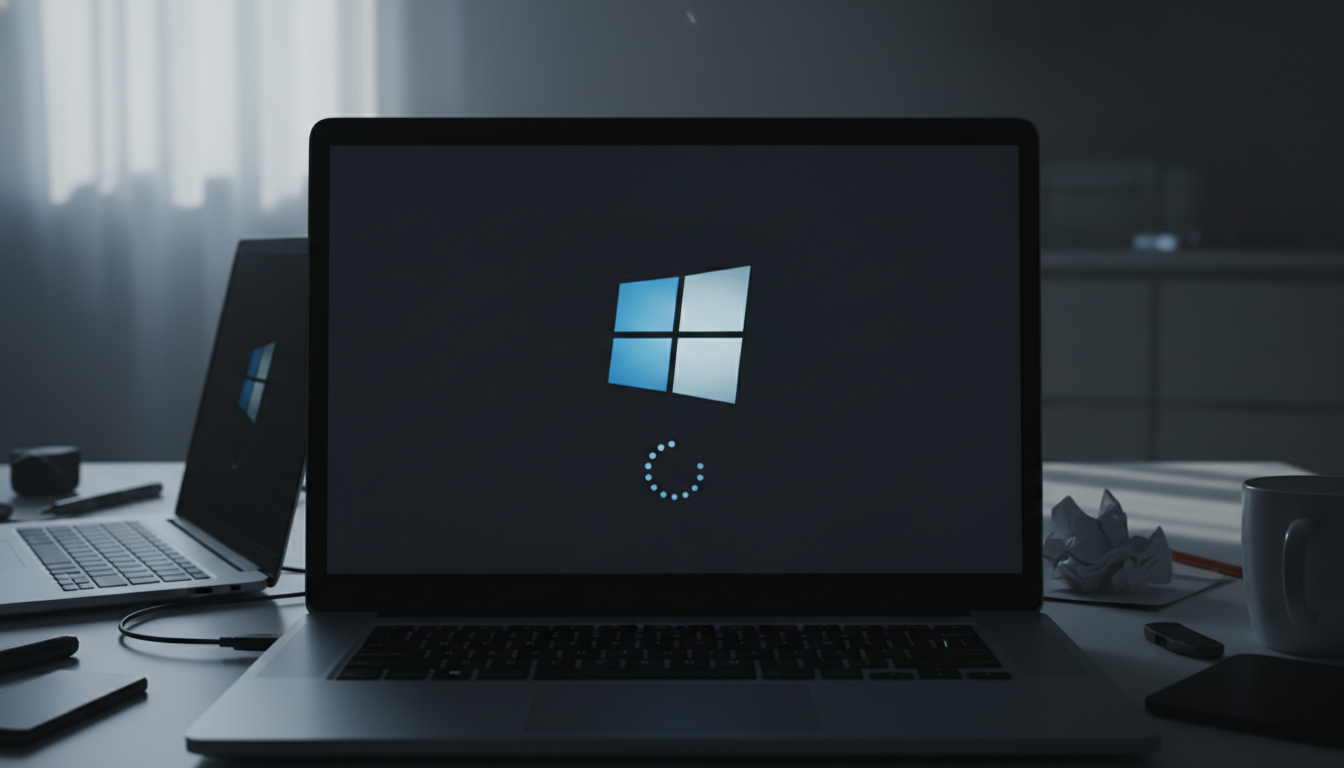
Ever wondered why Windows takes forever to start up? If you’re tired of slow boots, you’re not alone. Even on new Windows 11 machines, many face this issue. Too many startup apps, not enough disk space, and old hardware can slow you down.
In this article, we’ll look at why Windows boots slowly and how to fix it. Whether you’re dealing with a slow Windows 10 or just want a faster system, we’ve got you covered. Follow our steps to make your computer start up quicker and boost your productivity.
Key Takeaways
- Understand the common reasons for slow boot times.
- Identify problematic startup applications.
- Learn how to free up disk space effectively.
- Explore options to enhance disk speed.
- Discover quick fixes and advanced repair methods.
Why Windows Boot Gets Slow

Knowing why your Windows boots slowly is key to fixing it. Many things can make your computer take longer to start up. By understanding these causes, you can make your computer start up faster.
Too Many Startup Apps
Too many apps running at start-up can slow things down. Each app takes longer to load, making your computer slower. Check which apps start up automatically and remove the ones you don’t need.
Low Disk Space
Not enough space on your hard drive can also slow things down. Windows needs room to load its files. Cleaning up your computer regularly can help free up space and speed up boot times.
Slow HDD
Older hard disk drives (HDDs) can make your computer slow to start. Upgrading to a solid-state drive (SSD) can make a big difference. An SSD is much faster and can make your computer start up quicker.
Quick Fixes

Fixing a slow windows 10 or windows 11 startup is easier than you think. Simple steps can make your device run faster and boot quicker. If your PC also feels slow after updates, this guide on Windows 11 slow after an update can help.
Disable Startup Apps
Too many programs starting up can slow your computer. Here’s how to manage them:
- Press Ctrl + Shift + Esc to open Task Manager.
- Navigate to the Startup tab.
- Select any apps you don’t need and click Disable.
Free Up Space
Not enough disk space slows down your computer. Here’s how to clean up:
- Open Settings.
- Go to System and select Storage.
- Look through your files and delete what you don’t need.
Restart and Test Boot Time
After making these changes, restart your computer. Watch how fast it boots now. A few tweaks can make a big difference in speed.
Safe Fix Steps
If your computer boots slowly, try these safe steps to improve performance. Each step tackles common problems that slow down startup. This makes it easier to find and fix the main issue. If you also notice your PC freezing while starting up, see Windows freezing randomly for extra checks.
Clean Startup List (Task Manager)
Open Task Manager by right-clicking on the taskbar and selecting it. Go to the “Startup” tab to see apps that start at boot. Turn off any programs you don’t need. This makes your computer start up faster and work better.
Uninstall Unused Apps
Check your installed apps regularly. Uninstall any you don’t use. To do this, go to “Settings,” then “Apps,” and pick what to remove. This frees up space and makes your computer start up quicker.
Update Windows and Drivers
Updating Windows and drivers fixes bugs and improves performance. Go to “Windows Update” in Settings to find updates. Make sure drivers, like graphics and motherboard, are also up to date. This helps your computer boot up efficiently.
Check Disk Health and Errors
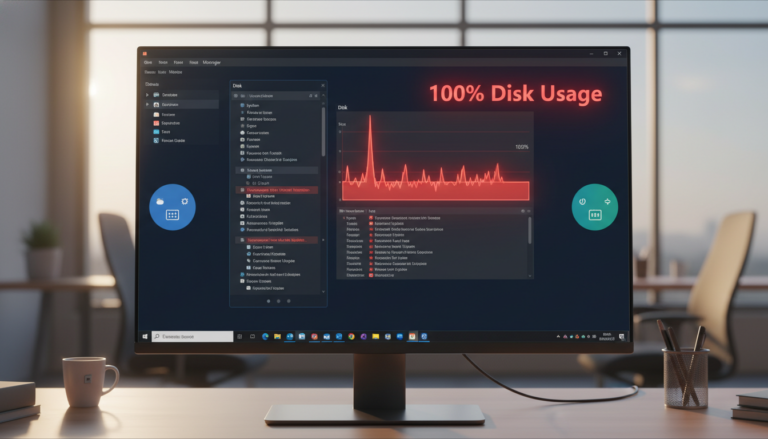
It’s important to check your disk for errors that slow down boot. Use “CHKDSK” in Command Prompt as an admin by typing “chkdsk /f.” This scan finds and fixes disk problems, helping your computer start up faster. If you see heavy drive activity during startup, follow the steps in 100% disk usage on Windows 11 too.
Advanced Fixes
When your windows boot time is slow, advanced fixes can help. These steps can find and fix deeper problems. They aim to make your system start up faster.
Clean Boot Test (Undo Steps Included)
A clean boot test can find services that slow down your start-up. Here’s how to do it:
- Press Windows + R, type msconfig, and hit Enter.
- In the System Configuration window, go to the Services tab. Check the box that says Hide all Microsoft services.
- Click Disable all, then go to the Startup tab. Click Open Task Manager.
- Disable all startup items in Task Manager.
- Go back to System Configuration, click OK, and restart your computer.
If your boot time gets better, start adding services and startup items back. This will help find the problem. To undo the clean boot, just change the settings back.
Repair System Files (SFC/DISM)
System file corruption can slow down your computer. Windows has tools like SFC and DISM to fix this:
- Open the Command Prompt as an administrator by right-clicking the Start button.
- Type this command for SFC: sfc /scannow and press Enter.
- Wait for the scan to finish. If SFC finds problems, it will try to fix them.
- If SFC doesn’t work, use DISM by typing: DISM /Online /Cleanup-Image /RestoreHealth.
- After DISM, run the SFC command again for a complete fix.
These advanced fixes can help you understand and fix slow boot times. They also keep your system safe.
Conclusion
Slow Windows boot is usually caused by startup apps, low disk space, or a slow HDD. Start with the quick fixes, then move to disk checks and updates, and only use clean boot or SFC/DISM if the basics don’t help.
If the boot time is still bad after these steps, it may point to a failing drive or weak hardware. Back up your important files and consider an SSD upgrade for the biggest real-world improvement.
Further Reading
For more help, you can also visit the ETechAtWork homepage, read About ETechAtWork, or use the Contact page.
FAQs
Q: Why does my Windows take a long time to boot?
A: Slow boot times often come from too many startup apps, not enough disk space, or slow hard drives. Fixing these problems can make your computer start faster.
Q: How can I speed up my Windows 11 slow startup?
A: To speed up Windows 11, disable apps you don’t need at startup, free up disk space, and keep your system updated. Regular care can stop slow boots.
Q: What should I do if my Windows 10 slow boot persists?
A: For a stuck Windows 10 slow boot, try a clean boot, remove unused apps, and check for system errors. These steps can find and fix the problem.
Q: Can insufficient disk space really affect my PC boot time?
A: Yes, not enough disk space can slow down your PC’s boot. Cleaning up your disk regularly can improve performance.
Q: What is a clean boot, and how does it help with slow boot issues?
A: A clean boot starts Windows with just the basics. It helps find software conflicts that slow down boot times, making it easier to solve the problem.
Q: How do I check for slow hard drives impacting my boot time?
A: Use tools like Check Disk or third-party apps to check your hard drive’s health. If it’s failing or too slow, you might need a new one.
Q: What are the risks involved in tweaking startup settings?
A: Changing startup settings can cause problems if you disable important programs. Be careful and only disable apps you know are safe.
Q: Should I consider hardware upgrades if boot times remain slow?
A: If software fixes don’t work, upgrading your hardware, like to an SSD, can greatly improve boot times and system performance.