Ever sat down at your computer and found the sound gone? You’re not alone. Many face audio problems on Windows 10 or 11. You might hear sound in BIOS but not in Windows. So, what’s causing this?
Understanding why ‘windows sound not working’ can help you fix it. This ensures you enjoy your media again without delay.
Key Takeaways
- Check for the right output device to resolve audio not working Windows 10 issues.
- Adjust volume settings as muted apps or systems can cause sound loss.
- Driver problems are a frequent culprit in Windows audio issues.
- Restarting the audio service can be a quick fix for sound problems.
- Running the audio troubleshooter is a safe first step for diagnosing issues.
- Updating the audio driver may solve ongoing sound problems effectively.
Common Reasons
If your audio isn’t working on Windows 10, there are a few common problems. Knowing these can help you fix the issue.
Wrong Output Device
It’s easy to pick the wrong output device. This can cause confusion when you try to play sounds. Make sure you’re using the right device in your sound settings.
Muted App or System
Another reason might be that apps or your system are muted. Check the Volume Mixer to see if any apps are turned off. This can help you find the problem.
Driver Problems
Outdated or broken sound drivers can also cause issues. Keep your drivers updated and installed correctly. This is key for good sound quality.
| Issue | Description | Solution |
|---|---|---|
| Wrong Output Device | Incorrect device selected for audio output. | Change output device in sound settings. |
| Muted App or System | Sound muted for specific applications or system-wide. | Unmute in Volume Mixer settings. |
| Driver Problems | Outdated or corrupted sound drivers preventing audio. | Update or reinstall drivers from Device Manager. |
Quick Fixes
If you’re having trouble with Windows sound not working, don’t worry. There are quick fixes to try. These steps can help fix audio problems on Windows 10. Start with these easy solutions to fix your speakers.
Check Volume Mixer
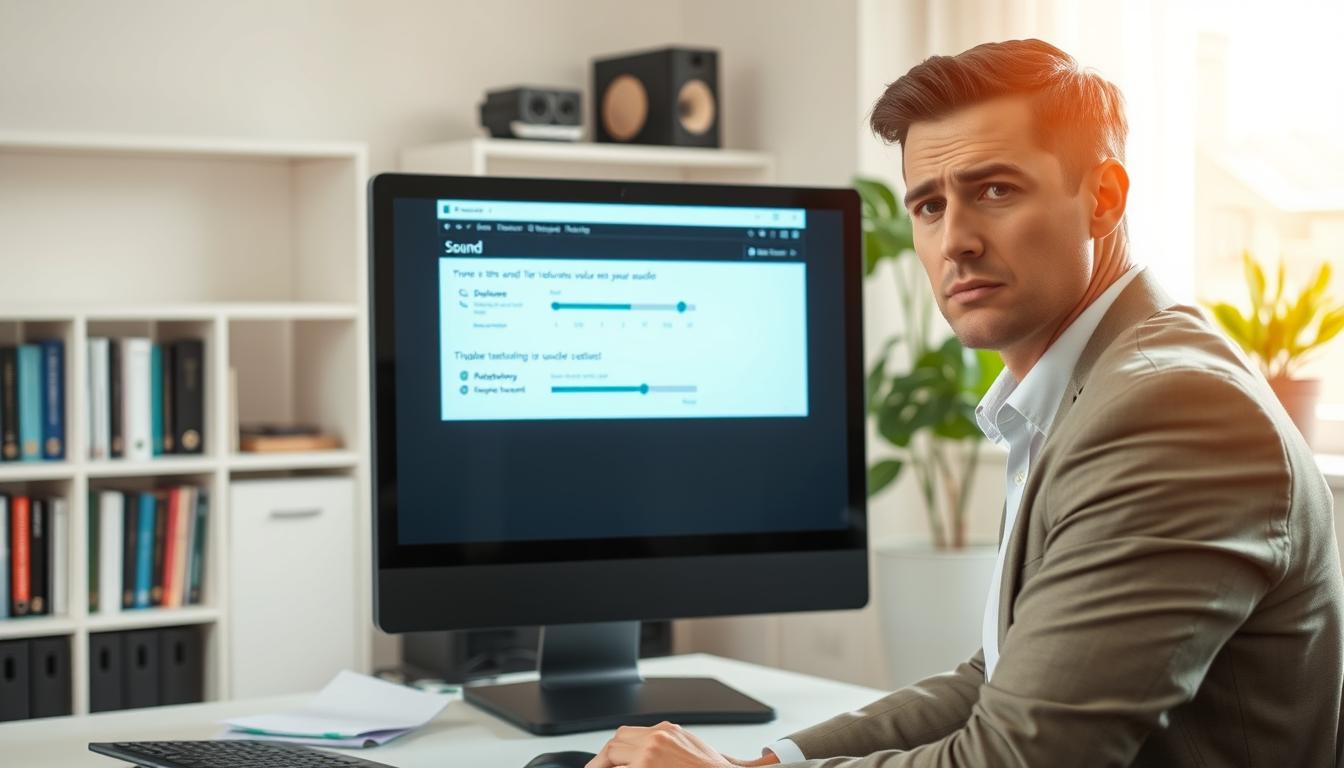
First, check the Volume Mixer settings. Right-click the sound icon in your system tray and choose “Open Volume Mixer.” Make sure all apps aren’t muted. Sometimes, apps can have their volumes turned down, making it seem like no sound is working.
Pick the Right Output Device
Next, pick the right output device. Click on the sound icon and choose “Playback devices.” Make sure your speakers are set as the default device. If your speakers aren’t working, this might fix the problem, even if you have other audio outputs.
Restart Audio Service (Simple)
If sound issues still exist, try restarting the audio service. Press Windows + R to open the Run dialog, type in services.msc, and hit Enter. Find “Windows Audio” in the list, right-click it, and select “Restart.” This simple action often fixes sound problems quickly when you’re dealing with Windows 10 audio issues.
Safe Fix Steps
If quick fixes don’t work, try these safe steps to find and fix the real problem. These steps are great for issues like no sound on Windows 11 or audio not working on Windows 10.
Run Audio Troubleshooter
Windows has a built-in audio troubleshooter. It can find and fix common sound problems. Here’s how to use it:
- Right-click the sound icon in the taskbar.
- Select ‘Troubleshoot sound problems.’
- Follow the prompts to diagnose and fix the issue.
This tool can tell if the sound driver is broken or if settings need changing.
Update Audio Driver
An old or broken audio driver can cause sound problems. To update your driver:
- Open Device Manager by right-clicking the Start button.
- Expand the ‘Sound, video and game controllers’ section.
- Right-click your audio device and select ‘Update driver.’
- Choose ‘Search automatically for updated driver software.’
Updating your audio driver might fix issues like audio not working on Windows 10.
Check App Permissions (Mic/Speaker)
Sometimes, apps can cause audio problems. It’s important to check if apps have the right to use your microphone or speakers. To check app permissions:
- Go to ‘Settings’ from the Start menu.
- Select ‘Privacy,’ then ‘Microphone’ or ‘Camera.’
- Make sure the app is allowed to access the microphone/speaker.
Advanced Fixes
If simple fixes don’t work, you might need to try more advanced solutions. These can help fix sound problems on your Windows 10 system.
Roll Back Audio Driver (Warning)
Recent updates to your audio driver might cause issues. Rolling back the driver can fix this. Here’s how to do it:
- Right-click on the Start menu and select Device Manager.
- Expand the Sound, video and game controllers section.
- Right-click your audio device and choose Properties.
- Go to the Driver tab and select Roll Back Driver if available.
- Follow the prompts, then restart your computer to apply changes.
Be careful with this step. It might remove some features from newer driver versions.
SFC/DISM Repairs
For serious audio problems, use System File Checker (SFC) and Deployment Imaging Service and Management Tool (DISM). Follow these steps:
- Type cmd in the Start Menu, right-click on Command Prompt, and select Run as administrator.
- For SFC, enter sfc /scannow and press Enter. Wait for it to finish.
- For DISM, enter DISM /Online /Cleanup-Image /RestoreHealth and press Enter.
- Restart your computer after both scans to see if it fixed the problem.
These commands fix corrupted system files that might be causing audio issues. With these advanced fixes, you have a good chance of fixing your sound problem.
| Fix Method | Description | Potential Risks |
|---|---|---|
| Roll Back Audio Driver | Reverts the audio driver to a previous version. | Can remove improved features in the newer driver. |
| SFC Scan | Scans and repairs corrupted system files. | May require reinstallation of some updates. |
| DISM Repair | Repairs Windows imaging files and components. | Longer process; needs stable internet connection. |
FAQs
Q: Why is there no sound on my Windows 10 or 11 system?
Q: How can I fix audio not working in Windows without complicated steps?
Q: What should I do if my speakers are not working?
Q: How do I update my sound driver in Windows?
Q: What if the sound driver in Windows is still not working after an update?
Q: Is there a way to run a troubleshooter for audio issues?
Q: Why does audio work in BIOS but not in Windows?
Further Reading
If you fixed the main issue but Windows still feels unstable, these quick guides cover the next most common causes:
- Windows Update Stuck? Fix Download, Install, and Restart Loop (2026 Guide)
- Windows Apps Not Opening? Fix Apps Stuck or Crashing (2026 Guide)
- USB Device Not Recognized in Windows? Fix USB Errors (2026 Guide)
- Bluetooth Not Working in Windows 11? Fix Pairing and Connection (2026 Guide)
Browse more guides in Windows & PC