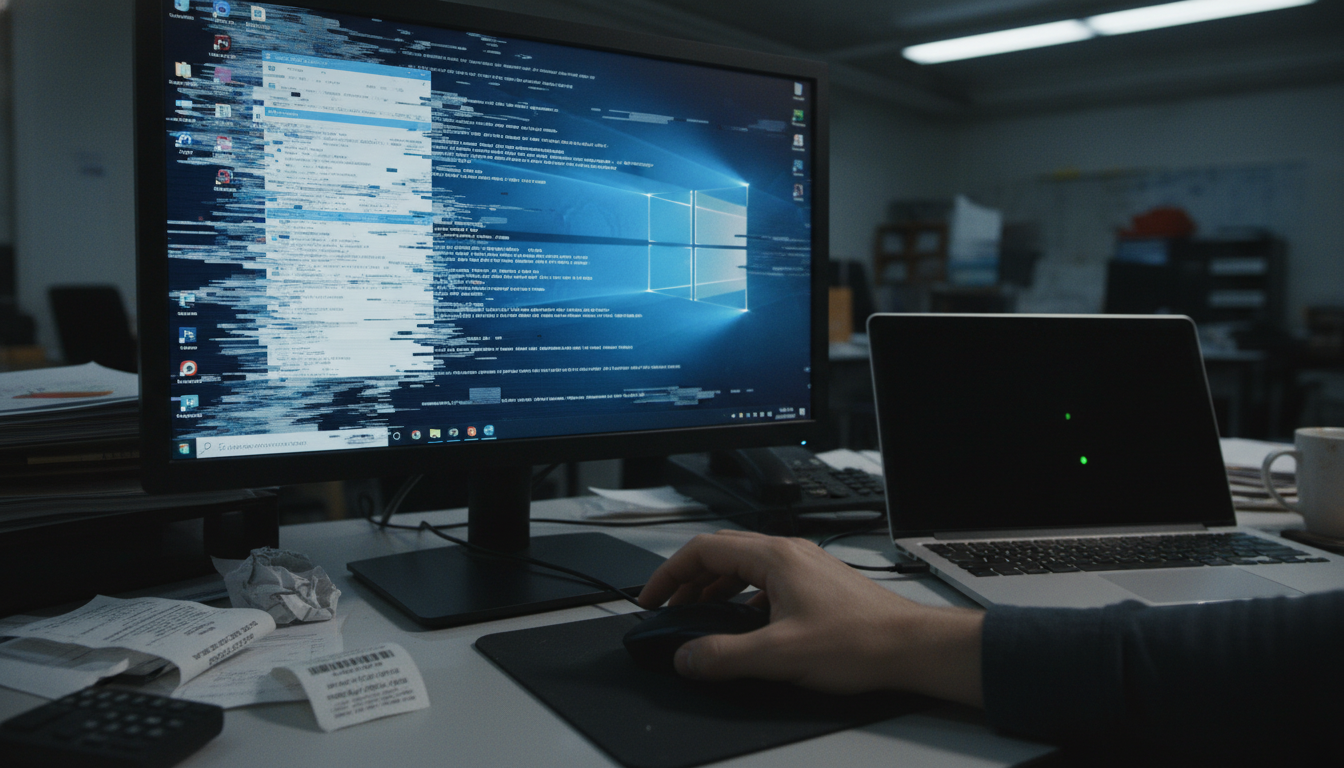
Ever found yourself in the middle of something important, only to have your Windows PC freeze? You’re not alone. Many face issues like Windows 11 freezing, leading to frustration. Slow response times, sudden unresponsiveness, and the dreaded Blue Screen of Death (BSOD) are common.
Understanding the symptoms and fixing the problems is key to staying productive. In this guide, we’ll show you how to find and fix the reasons behind your PC freezing. This will help you take back control of your computer and your work.
Key Takeaways
- Windows freezing may stem from overheating, driver issues, or disk and RAM errors.
- Frequent PC hangs can disrupt productivity and lead to data loss.
- Regularly checking system temperatures can help prevent freezes.
- Updating drivers is essential for a smooth operating experience.
- Identification of memory and disk errors is a key step in troubleshooting.
- Malware can also be a hidden cause of system hangs and should be checked regularly.
Common Reasons Windows Freezes

Knowing why Windows freezes can help fix your computer. Many things can cause this problem, like overheating or technical issues. These include driver problems and hardware errors.
Overheating Issues
Overheating happens when your computer gets too hot. This can be due to bad cooling or dust in the vents. Cleaning your fans and making sure air flows well can prevent overheating.
Driver Problems
Driver issues can make Windows unstable. Old or damaged drivers can cause problems with software, leading to freezes. Update your drivers to keep your system running smoothly.
RAM or Disk Errors
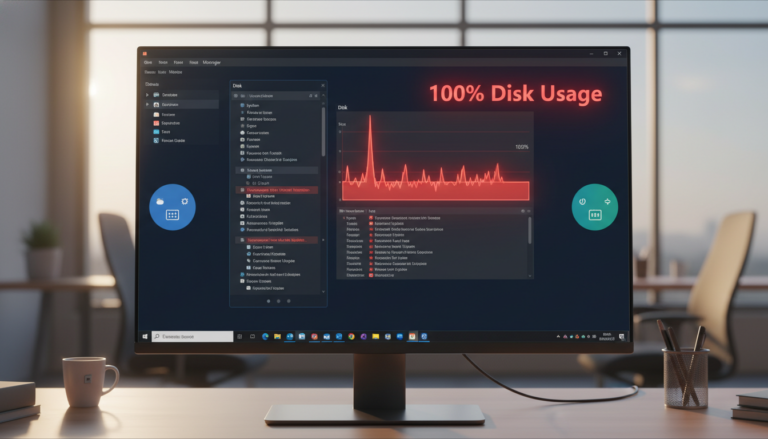
RAM or disk errors can really mess up your computer. RAM problems might make programs crash or freeze randomly. Disk errors can make files hard to access, causing your system to freeze. Check your RAM and disk regularly to catch these issues early. If you also notice the drive stuck busy, see how to fix 100% disk usage on Windows 11 because it can look like “random freezing.”
Quick Checks

Before diving into complex fixes, start with some quick checks. These can help find the problem fast. They can also save you time and effort.
Check Temperatures
First, check your system’s temperature. Make sure everything is running cool. Overheating can freeze your system. Use built-in tools or software to check CPU and GPU temperatures. Keep them below the recommended levels.
Update Graphics Driver
An old or broken graphics driver can freeze your system. Update it to fix this. Use Windows Update or the manufacturer’s website for the latest drivers. This can solve many problems and make your system more stable.
Restart and Test
If freezing still happens, try restarting. A reboot can fix temporary issues. It might make your system work right again. Watch if the problem goes away after restarting.
Safe Fix Steps
If quick checks didn’t fix the freezing problem, you can try safe diagnostic steps. These steps help you find and fix problems one by one. Look at performance, memory, disk health, and malware threats. If your PC also feels slow in general, follow this guide on how to fix a slow Windows PC.
Check Task Manager for Spikes
Open the task manager by right-clicking on the taskbar and choosing “Task Manager.” Look for any spikes in CPU or memory usage. High usage by certain apps might be freezing your system. If a program always uses a lot of resources, try closing it or updating it.
Run Windows Memory Diagnostic
For RAM issues, run a RAM diagnostic. Use the Windows Memory Diagnostic tool by typing “Windows Memory Diagnostic” in the search bar. Choose “Restart now and check for problems.” This tool checks your memory for errors that could cause problems.
Check Disk Health (SMART) and Errors
To check your hard drive’s health, do a disk health check. Open “This PC,” right-click on your main drive, and select “Properties.” Under the “Tools” tab, find the “Check” option. This checks for disk errors. For more details, use SMART tools to see your disk’s health status.
Scan for Malware Using Windows Security
Run a malware scan to check for malicious software. Open Windows Security from the Start menu. Under “Virus & threat protection,” start a full scan. This will find and remove any threats that might be freezing your system.
Advanced Fixes
If your computer still freezes, you might need to try more advanced steps. A clean boot can help by starting Windows with just the basics. This way, you can find out what’s causing the freeze.
Clean Boot Test (Undo Steps Included)
To do a clean boot:
- Press Windows + R to open the Run dialog.
- Type msconfig and hit Enter.
- In the System Configuration window, go to the Services tab.
- Check the box for Hide all Microsoft services.
- Click Disable all. This stops non-Microsoft services.
- Next, go to the Startup tab and click Open Task Manager.
- In Task Manager, disable all startup items.
- Close Task Manager and return to the System Configuration window. Click OK and restart your computer.
After restarting, test your system. If it works fine, start adding services and startup items back one by one. This will help you find the problem.
SFC and DISM Repairs
Freezing issues can also be fixed with system tools like the System File Checker and DISM repair. These tools can find and fix damaged system files that cause problems.
To run these repairs:
- Open the Command Prompt as an administrator.
- Type sfc /scannow and press Enter. This runs the system file checker.
- After SFC finishes, type DISM /Online /Cleanup-Image /RestoreHealth and hit Enter to start DISM repair.
After these repairs, restart your computer. Then, see if the freezing is fixed.
When to Get Help
Knowing when to get help is crucial for your computer’s health. If you see a lot of Blue Screens of Death, it means serious problems. Freezing, even in Safe Mode, is a big warning sign. Ignoring these signs can risk your data.
It’s wise to act fast to protect your data and make your system more reliable.
Frequent Blue Screens
A Blue Screen of Death that keeps coming back usually means hardware or software problems. If you see this, don’t try to fix it yourself. Without the right tools, you might make things worse.
Freezing Even in Safe Mode
Freezing, even in Safe Mode, means you might have a big problem. Safe Mode is for fixing issues, so ongoing problems could be serious. It’s time to get an expert’s help.
| Symptoms | Possible Causes | Recommended Action |
|---|---|---|
| Frequent Blue Screens of Death | Hardware failure, Driver conflicts, Malware | Seek professional help for diagnostics |
| Persistent freezing in Safe Mode | Corrupted files, Failing hardware | Immediate expert assessment |
| Crashes during normal operations | Software issues, Overheating | Backup data and consult a technician |
Conclusion
Random Windows freezing is usually caused by heat, drivers, or a struggling disk/RAM. Start with quick checks (temps, drivers, restart), then use Task Manager, memory tests, disk checks, and malware scans to narrow it down.
If freezes continue after clean boot testing and SFC/DISM repairs, treat it as a sign of deeper hardware or system damage and back up your files before the issue gets worse.
Further Reading
- Fix Windows 11 slowdowns after an update
- Troubleshoot a Windows PC that takes a long time to boot
- Read more Windows & PC fixes
For more help, you can also visit the ETechAtWork homepage, read About ETechAtWork, or use the Contact page.
FAQs
Q: What can I do to prevent my Windows from freezing?
A: To stop Windows from freezing, keep your system updated. Clean your hardware to avoid overheating. Make sure you have the latest drivers installed.
Q: How can I check if overheating is causing my Windows to freeze?
A: Check CPU and GPU temperatures with Windows tools or trusted monitoring apps. If temps spike during normal use, clean dust from vents/fans and improve airflow.
Q: Are the troubleshooting steps different for Windows 10 and Windows 11?
A: The basics are the same (drivers, overheating, disk, RAM, malware). The menu locations can look slightly different, but the checks and repairs work similarly.
Q: What should I do if my computer keeps freezing during heavy tasks?
A: Watch Task Manager for CPU/RAM spikes, check temperatures, and close heavy apps. If it still freezes, do a clean boot test to find conflicts.
Q: How can I identify if a driver is causing my Windows to freeze?
A: If freezes started after an update or new device, roll back or update that driver. You can also use clean boot testing to isolate driver or software conflicts.
Q: What is the best way to run a malware scan on Windows?
A: Use Windows Security and run a full scan. If you suspect something stubborn, run an offline scan from Windows Security as well.
Q: How do I perform a Clean Boot on Windows?
A: Use msconfig, hide Microsoft services, disable the rest, then disable startup items in Task Manager and restart. Re-enable items one by one to find the cause.
Q: When should I consider professional help for Windows freezing?
A: If you get repeated BSODs, freezing happens in Safe Mode, or SMART/disk checks show warnings, it’s safer to get expert diagnosis.