Ever thought if your PC is really safe? With threats online growing, knowing how to use Windows Defender is key. It’s now called Microsoft Defender Antivirus and comes with Windows 10 and 11. This guide will show you the top settings to turn on for the best protection in 2026.
Key Takeaways
- Understanding Windows Defender is essential for PC security.
- Activating optimal Windows security settings can significantly reduce risk.
- Microsoft Defender Antivirus comes pre-installed on Windows devices.
- Real-time protection is a key feature worth enabling.
- Utilizing built-in security features makes managing your protection easier.
- Regular checks of your security settings ensures peak performance.
What Windows Security Covers

Windows Security protects your system in many ways. It includes virus protection to keep your PC safe from threats. It also has defender firewall settings to watch network traffic and block unauthorized access. Knowing how these parts work together helps keep your device safe from cyber threats.
Virus Protection vs Firewall
Virus protection from Windows Defender finds and removes malware early. It scans files and apps in real time, using the latest threat info. On the other hand, the defender firewall controls network traffic. It checks data packets to ensure only safe interactions happen and blocks threats.
Together, these features make your system more secure for both personal and work use.
What Real-Time Protection Does
Real-time protection from Windows Defender always checks your device for suspicious activities. It watches processes and files for threats, alerting you right away if it finds any. This helps stop malware from harming your system.
By turning on real-time protection, your device stays ahead of cyber threats.
Quick Setup (Best Defaults)
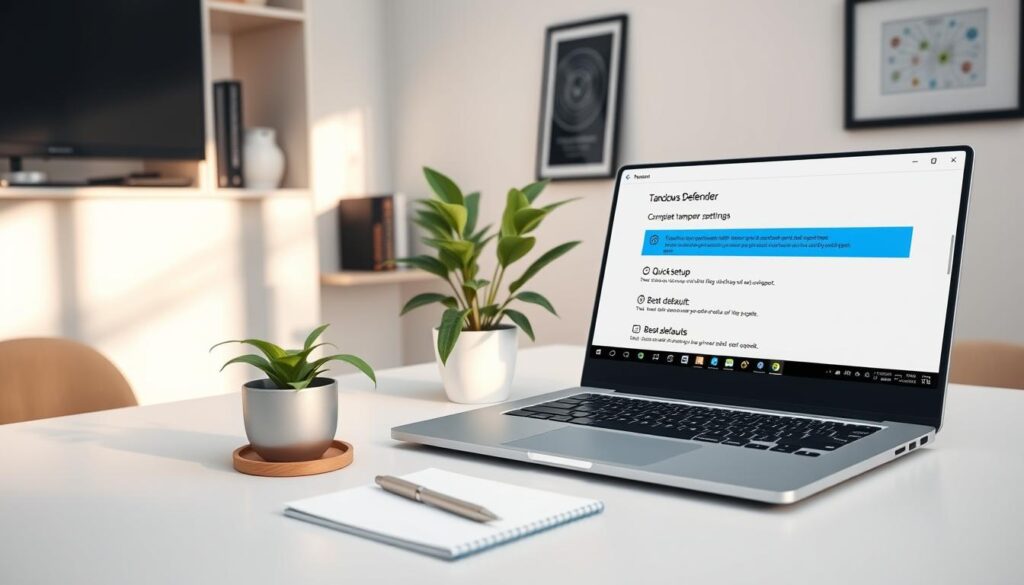
Setting up Windows Defender right is key to keeping your system safe. A fast setup is crucial to protect against many threats. Start by turning on real-time protection, which watches for any odd activities.
Turn On Real-Time Protection
To turn on real-time protection, go to the Windows Security settings. Look for “Virus & threat protection” and flip the real-time protection switch to “On.” This keeps your system scanned all the time, catching threats early.
Turn On Cloud-Delivered Protection
Then, turn on cloud-delivered protection for better safety. This uses Microsoft’s cloud to spot threats quickly. Find this in the “Virus & threat protection” section and make sure it’s on for top security.
Turn On Tamper Protection
Last, turn on tamper protection to keep your settings safe. It stops unwanted changes, keeping your preferences as you set them. Go to “Manage settings” under “Virus & threat protection” and turn tamper protection on.
Extra Protection (Optional)
Looking to boost your security? Adding extra protection to Windows Defender is a smart move. Ransomware protection and smart screen basics add extra layers to defend your system against threats.
Ransomware Protection (Controlled Folder Access) (Warning)
Controlled Folder Access shields your critical files from ransomware. It limits access to folders, only allowing trusted apps to get in. But, it’s important to note that some legit apps might get blocked too. So, it’s key to set it up carefully to keep your system safe without hindering your work.
SmartScreen Basics
SmartScreen is a must for safe browsing. It blocks unknown apps and harmful websites. If you try to visit a suspicious site or download something new, SmartScreen warns you. Knowing how SmartScreen works helps you surf the web safely, reducing the chance of running into malware.
Safe Scanning Habits
Keeping your system safe is key. Regularly using Windows security scans is a big help. Knowing the difference between scan types helps you make better choices for your security.
Quick Scan vs Full Scan
A quick scan checks the most vulnerable parts of your computer fast. It looks at important files and apps for common threats. On the other hand, a full scan checks every file and program, taking longer but is more detailed.
For the best protection, do both scans. Run a quick scan often and a full scan sometimes.
What to Do If Threats Are Found
If scans find threats, follow the instructions on your screen. You might need to quarantine or remove malware. This step is vital for keeping your system safe.
After dealing with threats, think about changing your scanning schedule. Also, try to make your scanning habits safer to avoid future problems.
FAQs
Q: How can I enable Real-Time Protection in Windows Defender?
Q: What is Cloud-Delivered Protection?
Q: How do I configure the Defender Firewall settings?
Q: Can I enable Ransomware Protection without issues?
Q: How often should I run Quick Scans or Full Scans?
Q: What should I do if malware is detected during a scan?
Q: Is there a way to troubleshoot if Real-Time Protection isn’t working?
Further Reading (common threats this helps with)
These are the problems Defender settings are meant to prevent or clean up:
- How to Remove Malware in Windows 11: Safe Steps
- Fake Virus Alert Pop-Up Removal: What to Do
- Remove Browser Notification Spam: Stop Pop-Ups
- Two-Factor Authentication Setup Guide: Safer Logins
Browse more privacy and security guides in Security & Privacy