Ever wondered why your Windows apps won’t open? You’re not alone. Many users face the problem of apps not launching in Windows 10 and 11. This issue can show up as app crashes, freezes, or unclear error messages.
In this guide, we’ll explore the reasons behind these problems. We’ll also give you easy solutions to fix them. Whether it’s a broken app or missing permissions, our fixes are simple. They help you get your programs working again without complicated steps.
Key Takeaways
- Identify the symptoms: crashing, freezing, or error messages.
- Quick fixes include restarting your PC and checking for updates.
- Repair or reset the app using Windows Settings as a first step.
- Reinstall the app safely if necessary.
- Run built-in troubleshooters to detect and resolve issues.
What’s Happening
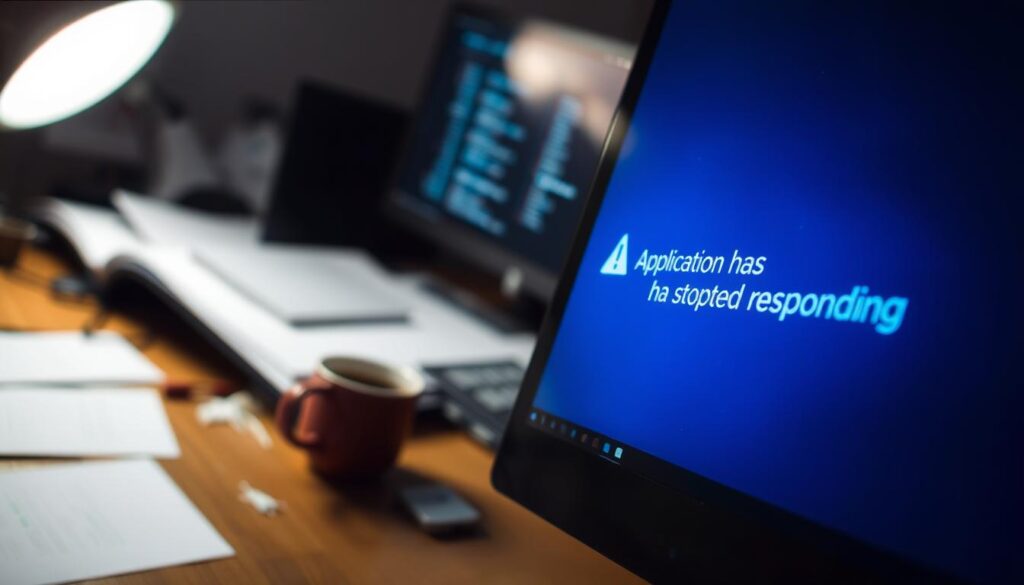
When an app stops working, it can be frustrating. You might see an app crash, where the program shuts down with error messages. Or, you might experience an app freeze, where the app doesn’t respond but stays open.
App Crash vs App Freeze
An app crash is sudden and stops the program completely. You might see error messages that explain why it crashed. On the other hand, an app freeze makes the program unresponsive but it stays open.
Missing Permissions or Corruption
Missing permissions can cause apps to crash when you launch them. Corruption in the app or Windows can also lead to problems. Users often report issues with software conflicts and updates, making apps hard to open.
Quick Answer (Try These First)
If apps won’t launch, there’s a simple fix. Try rebooting your PC. This can clear out temporary problems that stop apps from opening in Windows 11. A reboot refreshes your system, often fixing small issues.
Restart PC
Restarting your PC can solve app launch problems. It clears your memory and stops processes that might block app performance.
Run as Administrator (If Needed)
Some apps need extra permissions to work right. Right-click the app icon and choose “Run as Administrator.” This helps if the app can’t get the resources it needs.
Check for Pending Updates
Make sure your Windows is updated. Open Windows Update settings to check for updates. Installing these updates can fix app launch issues in Windows 11. Keeping your system updated helps apps work better.
Fix Steps (Safe First)
When apps won’t launch, there are simple steps to take. These steps help fix or reset apps, solving problems without losing data. If these steps don’t work, try reinstalling the app to remove any corruption.
Make sure you have enough space on your disk and clear temporary files. This keeps apps running smoothly. If all else fails, the Windows Troubleshooter can find and fix specific issues.
Repair or Reset the App (Windows Settings)
Windows Settings lets you repair or reset apps. Go to Settings > Apps, pick the app, and then Advanced options. You’ll see options to repair or reset. Repairing tries to fix problems, while resetting brings the app back to its original state.
Reinstall the App Safely
If repair doesn’t work, try uninstalling and reinstalling. Go to Settings > Apps, find the app, and click Uninstall. Then, download and install the latest version from the official site. This usually fixes problems with corruption or compatibility.
Check Disk Space and Temp Files
Not enough disk space can cause big problems. Make sure you have enough room for apps to work. Go to This PC, right-click, and check your disk space. Clearing temporary files also boosts performance. Use Disk Cleanup to get rid of unnecessary files.
Run Windows Troubleshooter (If Available)
The Windows Troubleshooter helps find and fix app problems. Open Settings > Update & Security > Troubleshoot. Pick the app, and follow the instructions. It can tell if the issue is with the app or the system.
Advanced Fixes
If standard fixes don’t work, it’s time for more advanced troubleshooting. These methods tackle deep system issues that might be causing app crashes on Windows 10.
SFC and DISM (Warning First)
The System File Checker (SFC) and Deployment Imaging Service and Management Tool (DISM) can fix system file problems. But, using them wrong can make things worse. Make sure to follow the steps carefully: open Command Prompt as an administrator and enter the necessary commands. This might fix issues that affect your apps’ stability.
New User Profile Test
Creating a new user profile can help find if the problem is with your settings or permissions. Just set up a new account and see if apps work right there. This test can show if your settings are causing the crashes, helping you find a solution.
FAQ
Q: Why aren’t my apps opening in Windows 10 or 11?
A: Apps might not open because of software conflicts or permission issues. Sometimes, the problem lies within the app or the Windows system itself.
Q: What should I do if my app keeps crashing on launch?
A: First, try restarting your PC. Then, run the app as an administrator. Also, check for any Windows updates that could fix the issue.
Q: How can I fix apps that won’t open after the initial troubleshooting?
A: Use Windows Settings to repair or reset the app. Make sure you have enough disk space. Clear temporary files and consider reinstalling the app.
Q: What are the System File Checker (SFC) and DISM tools?
A: These are Windows tools that fix corrupted system files. But, use them carefully. Improper use can lead to more problems.
Q: How can I tell if the issue is related to my user account?
A: Create a new user profile. If apps work there, the problem is probably with your original account’s settings or permissions.
Q: What do I do if none of these solutions work?
A: If standard fixes don’t work, look for help from tech forums or support. There might be specific issues related to your system.
Further Reading
If your problem started after an update, restart, or driver change, go in this order:
- Fix Windows update stuck
- Fix Windows apps not opening
- Fix Windows sound not working
- Fix USB device not recognized
- Fix Bluetooth not working in Windows 11
Browse more guides in Windows & PC