Ever noticed your laptop’s WiFi is slow, but your phone is lightning fast? You’re not alone if your laptop’s WiFi is slow but your phone is quick. This issue is common, even with Windows 11. Despite fast internet, many things can slow down your laptop’s WiFi. We’ll look into why this happens and how to fix it.
First, figure out if the problem is with your laptop or other devices. If your laptop shows connected but websites do not load, check this first: DNS Server Not Responding: Fix
Key Takeaways
- Different factors can cause a laptop’s WiFi to slow down compared to phones.
- Common culprits include outdated drivers, power-saving settings, and network band issues.
- Quick fixes like moving closer to your router can significantly improve speed.
- Safe fix steps involve updating drivers and changing power settings.
- For persistent problems, advanced fixes like resetting network settings may be necessary.
Why Only the Laptop Is Slow
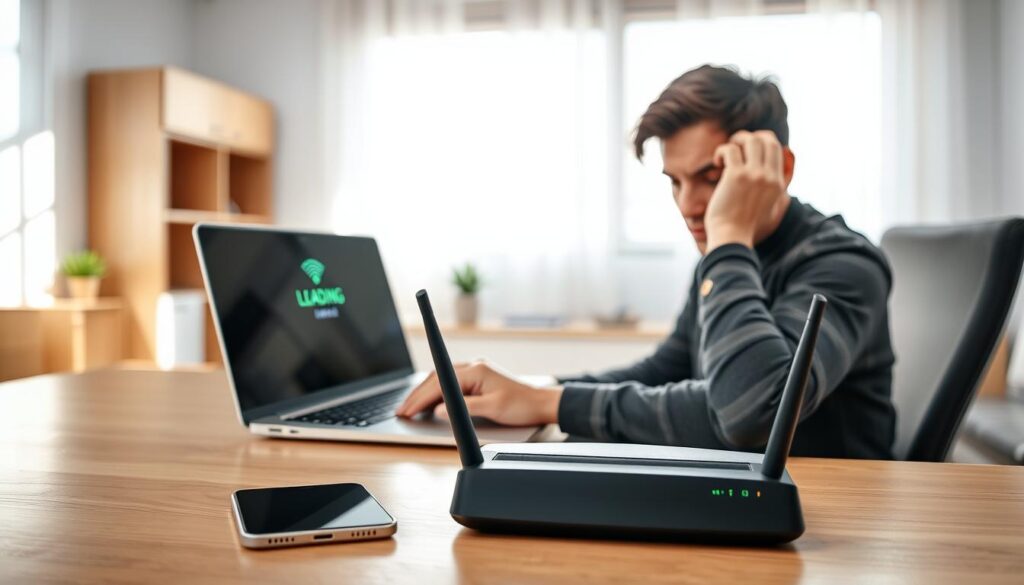
Ever wondered why your laptop’s internet is slow, but your phone connects quickly? Several factors could be causing this. Let’s explore why your laptop might be slow, even when it’s connected to Wi-Fi.
Weak Adapter or Old Driver
A weak Wi-Fi adapter can make it hard to stay connected. An outdated driver can make things even worse. Updating your WiFi driver might help speed things up.
If your laptop also drops WiFi a lot, use this guide: WiFi Keeps Disconnecting: Fix
Power Saving Limiting WiFi
Is your laptop in power-saving mode? This mode can slow down your Wi-Fi to save battery. Turning off this mode can make your browsing faster.
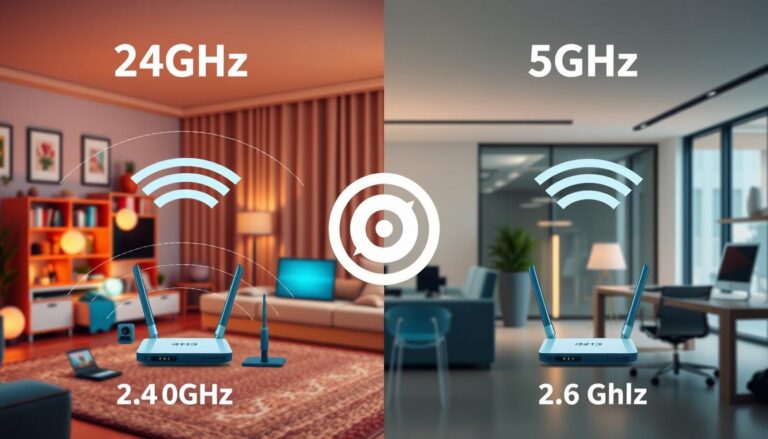
Wrong Band (2.4 vs 5GHz)
The wireless band your laptop uses affects its speed. If it’s on the 2.4GHz band, you might see slower speeds. Switching to the 5GHz band can improve your internet speed.
If you want a simple guide on bands, read: 2.4GHz vs 5GHz WiFi: What’s the Difference?
Quick Fixes to Try First

If your laptop’s WiFi is slow but others work fine, there are quick fixes. Start with simple steps before trying more complex ones.
Reconnect and Test Speed
First, disconnect your laptop from WiFi and then reconnect. This can refresh the connection and might speed things up. Use an online tool to test your speed after reconnecting. See if it made a difference.
If WiFi is connected but still not working, check: WiFi Connected But No Internet: Fix
Move Closer to Router
Your laptop’s location affects its WiFi connection. Try moving closer to your router. Walls and devices can weaken signals, so a direct line to the router is best.
Switch to 5GHz If Available
If your router has dual-band, try the 5GHz band. It’s faster and less crowded than 2.4GHz. This might fix your slow WiFi and make browsing smoother.
Safe Fix Steps
If you’re having trouble with slow Wi-Fi on Windows 11, don’t worry. These safe steps will help make your laptop’s Wi-Fi better. They can fix many common problems that slow down your internet.
Update WiFi Driver (Device Manager)
It’s important to keep your WiFi driver updated. Here’s how to do it:
- Right-click on the Start button and select Device Manager.
- Locate Network adapters and expand the list.
- Right-click on your WiFi adapter and choose Update driver.
- Select Search automatically for updated driver software.
Updating your WiFi driver can make your internet faster and fix bugs. This can really help with slow Wi-Fi issues.
Disable Power Saving for WiFi Adapter
Power-saving settings might slow down your WiFi. Here’s how to turn it off:
- In Device Manager, find your WiFi adapter again.
- Right-click and select Properties.
- Navigate to the Power Management tab.
- Uncheck the option that allows the computer to turn off this device to save power.
Turning off this setting can make your internet connection faster.
Forget Network and Reconnect
Reconnecting to your WiFi network can fix connection problems. Here’s how to do it:
- Open Settings and click on Network & Internet.
- Select Wi-Fi and then Manage known networks.
- Choose your network and click Forget.
- Reconnect by selecting your network from the available options and entering the password.
This simple step can clear up any connection issues and improve your network quality.
Check Background Downloads
Downloads in the background can slow down your WiFi. Look for these bandwidth hogs:
- Open your task manager (Ctrl + Shift + Esc).
- Navigate to the Processes tab and look for high-network-usage applications.
- Pause or close any unnecessary downloads or streaming services.
If your laptop became slow after a Windows update, use: Windows 11 Slow After Update: Fix
Advanced Fixes
If basic solutions didn’t work, it’s time for advanced fixes. These steps can solve ongoing connection issues. But, they make bigger changes to your system, so be careful.
Reset Network Settings (Warning)
WARNING: This will remove saved WiFi networks and passwords on your PC. You will need to reconnect after the reset.
Resetting your network settings can solve tough problems. But, it will delete all your network settings and WiFi passwords. You’ll have to reconnect to WiFi and enter passwords again after resetting.
How to reset network settings in Windows 11:
- Open Settings.
- Go to Network & Internet.
- Click Advanced network settings.
- Click Network reset.
- Click Reset now, then restart your laptop.
Try USB WiFi Adapter (If Hardware Is Weak)
Using a USB WiFi adapter can boost your laptop’s WiFi performance. It’s great if your laptop’s WiFi is old or slow. Just plug it in, install drivers, and see if your connection gets better.
Conclusion
If your laptop WiFi is slow but your phone is fast, it is usually a laptop-only issue like the WiFi driver, power-saving settings, or WiFi band selection that is limiting speed.
If the safe steps do not help, a network reset or a USB adapter is often the fallback that fixes the issue on older laptops.
Browse more help here: Wi-Fi & Networking
FAQs
Q: Why is my laptop WiFi slow but my phone is fast?
A: This usually happens because the laptop has an older WiFi adapter, an outdated WiFi driver, power-saving limits, or it is using the 2.4GHz band while your phone is on a faster band.
Q: How can I tell if the internet speed issue is with my laptop?
A: Test speed on your phone and laptop in the same room on the same WiFi. If the phone stays fast but the laptop stays slow, the problem is most likely your laptop driver, WiFi adapter, or Windows settings.
Q: What are some immediate steps I can take to improve my laptop’s internet speed?
A: Start by reconnecting to WiFi, moving closer to the router, and switching to 5GHz if available. After that, update the WiFi driver and disable WiFi power saving.
Q: How do I update my WiFi driver on Windows 11?
A: Open Device Manager, expand Network adapters, right-click your WiFi adapter, and choose Update driver. Then restart your laptop and test again.
Q: What should I do if my laptop is still slow after trying quick fixes?
A: Follow the safe steps in order: update driver, disable power saving, forget and reconnect WiFi, and check background downloads. If it still stays slow, do a network reset.
Q: Are there any advanced methods to resolve constant WiFi issues?
A: Yes. Network reset can fix broken network settings, and a USB WiFi adapter can help when laptop hardware is weak or failing.
Q: What should I do if I’m using a 2.4GHz band?
A: Try switching to 5GHz for better speed if your router supports it. If you need range (farther rooms), 2.4GHz can still be useful, but it is usually slower.