Ever wondered why your WiFi drops out, even when you need it most? It’s annoying when you’re streaming, gaming, or working from home. We’re here to help you fix WiFi disconnects and keep your internet stable.
We’ll show you how to solve WiFi problems on your laptop and other devices. Our goal is to make your internet connection reliable and smooth. Let’s find ways to keep your WiFi up and running without interruptions.
If the WiFi shows connected but you lose access to websites, this guide can help next: WiFi Connected But No Internet: Fix in 10 Minutes (2026)
Key Takeaways
- Identify common causes of WiFi disconnections.
- Learn quick fixes to try before diving deeper.
- Understand the importance of router placement and settings.
- Expand your knowledge on band usage: 2.4GHz vs 5GHz.
- Know when it’s time to perform advanced troubleshooting.
- Get answers to common questions about WiFi issues.
What’s Causing WiFi Dropouts

Figuring out why your WiFi drops is key to fixing it. Many things can make your connection unstable. We need to address these issues.
Weak Signal and Interference
Things like walls or big furniture can weaken your router’s signal. Devices like microwaves and cordless phones can also mess with your WiFi. This can make your router keep disconnecting, more so in big homes.
Router Overload or Overheating
Too many devices on your network can overload your router. This can slow it down and cause dropouts. If your router gets too hot, it can also lead to unstable connections.
ISP or Modem Issues
It’s not always your router’s fault. Problems with your Internet Service Provider (ISP) can also cause issues. A bad modem can make it seem like your WiFi is dropping all the time.
Quick Answer (Try These First)
Dealing with internet problems can be really annoying. If your wifi drops out or you lose connection often, there are quick fixes. Try these before looking into more complex solutions.
Reboot Router and Modem
First, reboot your router and modem. This simple action can fix temporary issues that make your wifi drop on Windows 11. Unplug both, wait 30 seconds, then plug them back in. This often solves many problems.
Forget Network and Reconnect
If your device keeps disconnecting from WiFi, try forgetting the network. Go to your network settings, pick your WiFi, and forget it. Then, reconnect with your password. This can clear up any wrong settings on your device.
Move Closer and Test Signal
Being far from your router might be the issue. If your wifi drops on Windows 11, try moving closer. Check the signal strength to see if your spot is the problem.
Fix Steps (Safe First)
If your wifi connection keeps dropping, start by checking your router’s setup and settings. Making a few tweaks can greatly improve your internet connection. Here are some steps to help you fix the problem.
Check Router Placement and Interference
First, look at where your router is. It should be in the middle of your home or office. Stay away from metal, microwaves, and cordless phones, as they can mess with your signal. Putting it up high can also help reach more areas, reducing wifi drops.
Split 2.4GHz vs 5GHz (Use the Right Band)
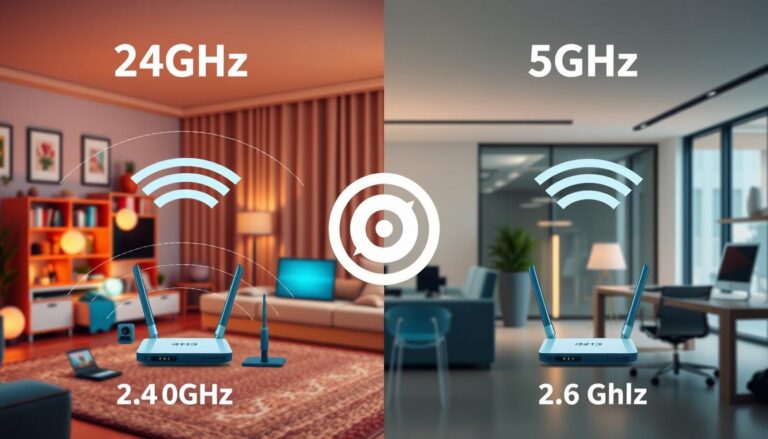
Your router can use both 2.4GHz and 5GHz bands. Use 2.4GHz for longer range, as it goes through walls better. But, 5GHz is faster and works best when you’re close to the router. Picking the right band can really help with unstable wifi.
Update Router Firmware (Warning First)
It’s important to keep your router’s firmware up to date. Old firmware can cause problems, like frequent disconnections. Before you update, check the manufacturer’s website for your model’s instructions. And don’t forget to back up your settings. Skipping updates can lead to your router disconnecting without reason.
Change WiFi Channel (If Crowded)
If you live in a crowded area with lots of networks, try changing your WiFi channel. Use your router’s settings to find a less busy channel. This small change can make a big difference in your connection, cutting down on wifi drops.
Advanced Fixes (Only If Still Dropping)
If simple fixes don’t work, it’s time for more advanced steps. These methods aim to solve persistent wifi issues. They’re useful when wifi drops randomly or when using Windows 11.
Reset Network Settings (Warning)
Resetting your network settings can fix wifi disconnect issues. It will remove all saved networks and devices. You’ll need to reconnect everything manually. Make sure this step fits your troubleshooting needs, as it starts fresh with your connectivity.
Factory Reset Router (Last Resort, Backup Settings)
If resetting doesn’t help, try a factory reset of your router. This resets it to its original state, which can solve ongoing wifi problems. Before you do this, save your current settings. This step will erase all custom settings and devices. Saving your settings now will save you from a long setup later.
Dealing with internet problems can be really annoying. If your wifi drops out or you lose connection often, there are quick fixes. Try these before looking into more complex solutions.
Reboot Router and Modem
First, reboot your router and modem. This simple action can fix temporary issues that make your wifi drop on Windows 11. Unplug both, wait 30 seconds, then plug them back in. This often solves many problems.
Forget Network and Reconnect
If your device keeps disconnecting from WiFi, try forgetting the network. Go to your network settings, pick your WiFi, and forget it. Then, reconnect with your password. This can clear up any wrong settings on your device.
Move Closer and Test Signal
Being far from your router might be the issue. If your wifi drops on Windows 11, try moving closer. Check the signal strength to see if your spot is the problem.
Fix Steps (Safe First)
If your wifi connection keeps dropping, start by checking your router’s setup and settings. Making a few tweaks can greatly improve your internet connection. Here are some steps to help you fix the problem.
Check Router Placement and Interference
First, look at where your router is. It should be in the middle of your home or office. Stay away from metal, microwaves, and cordless phones, as they can mess with your signal. Putting it up high can also help reach more areas, reducing wifi drops.
Split 2.4GHz vs 5GHz (Use the Right Band)
Your router can use both 2.4GHz and 5GHz bands. Use 2.4GHz for longer range, as it goes through walls better. But, 5GHz is faster and works best when you’re close to the router. Picking the right band can really help with unstable wifi.
If you want a simple comparison, read: 2.4GHz vs 5GHz WiFi: Which One Should You Use? (2026)
Update Router Firmware (Warning First)
WARNING: A firmware update can reset settings or cause issues if power cuts during the update. Do it only when you have stable power, and avoid switching off the router mid-update.
It’s important to keep your router’s firmware up to date. Old firmware can cause problems, like frequent disconnections. Before you update, check the manufacturer’s website for your model’s instructions. And don’t forget to back up your settings. Skipping updates can lead to your router disconnecting without reason.
Change WiFi Channel (If Crowded)
If you live in a crowded area with lots of networks, try changing your WiFi channel. Use your router’s settings to find a less busy channel. This small change can make a big difference in your connection, cutting down on wifi drops.
Advanced Fixes (Only If Still Dropping)
If simple fixes don’t work, it’s time for more advanced steps. These methods aim to solve persistent wifi issues. They’re useful when wifi drops randomly or when using Windows 11.
Reset Network Settings (Warning)
WARNING: This removes saved WiFi networks and passwords on this PC. You will need to reconnect after the reset.
Resetting your network settings can fix wifi disconnect issues. It will remove all saved networks and devices. You’ll need to reconnect everything manually. Make sure this step fits your troubleshooting needs, as it starts fresh with your connectivity.
Factory Reset Router (Last Resort, Backup Settings)
WARNING: This erases router settings, WiFi name/password, and custom ISP settings. Back up current settings first, and only use this step if nothing else worked.
If resetting doesn’t help, try a factory reset of your router. This resets it to its original state, which can solve ongoing wifi problems. Before you do this, save your current settings. This step will erase all custom settings and devices. Saving your settings now will save you from a long setup later.
FAQs
Q: Why does my WiFi keep disconnecting randomly?
A: Common causes include weak signal, interference, router overload/overheating, outdated router firmware, crowded WiFi channels, or modem/ISP issues. Start by rebooting and testing closer to the router.
Q: What should I do if my WiFi keeps dropping on my laptop?
A: First forget the WiFi network and reconnect. Then check laptop power saving settings and move closer to test signal strength. If only the laptop drops, it’s likely a device setting or driver issue.
Q: How can I fix WiFi disconnections on Windows 11?
A: Reboot the router/modem, forget and reconnect the network, then try disabling power saving for the WiFi adapter. If it still drops, do a Windows network reset as a last step.
Q: What causes my router to keep disconnecting?
A: Router overheating, too many devices, old firmware, crowded channels, or weak placement can all cause disconnects. Ventilation and a central router location help a lot.
Q: How do I stabilize an unstable WiFi connection?
A: Improve router placement, switch to the best band for your location (2.4GHz for range, 5GHz for speed near the router), and change WiFi channel if your area is crowded.
Q: What can I do if my internet drops frequently?
A: Test whether it’s WiFi-only or the full internet connection. If it affects all devices, check modem/ISP stability. If it affects one device, focus on that device’s WiFi settings and driver.
Q: Why does my WiFi connection keep disconnecting during video calls?
A: Video calls are sensitive to signal drops and interference. 5GHz near the router is usually more stable for calls, while 2.4GHz may be better if you’re far away and the 5GHz signal is weak.
Further Reading
If your Wi-Fi feels “fine” on one device but painful on another, these fixes usually connect. Here are a few related guides you can jump to next:
Browse more Wi-Fi troubleshooting guides here: Wi-Fi & Networking