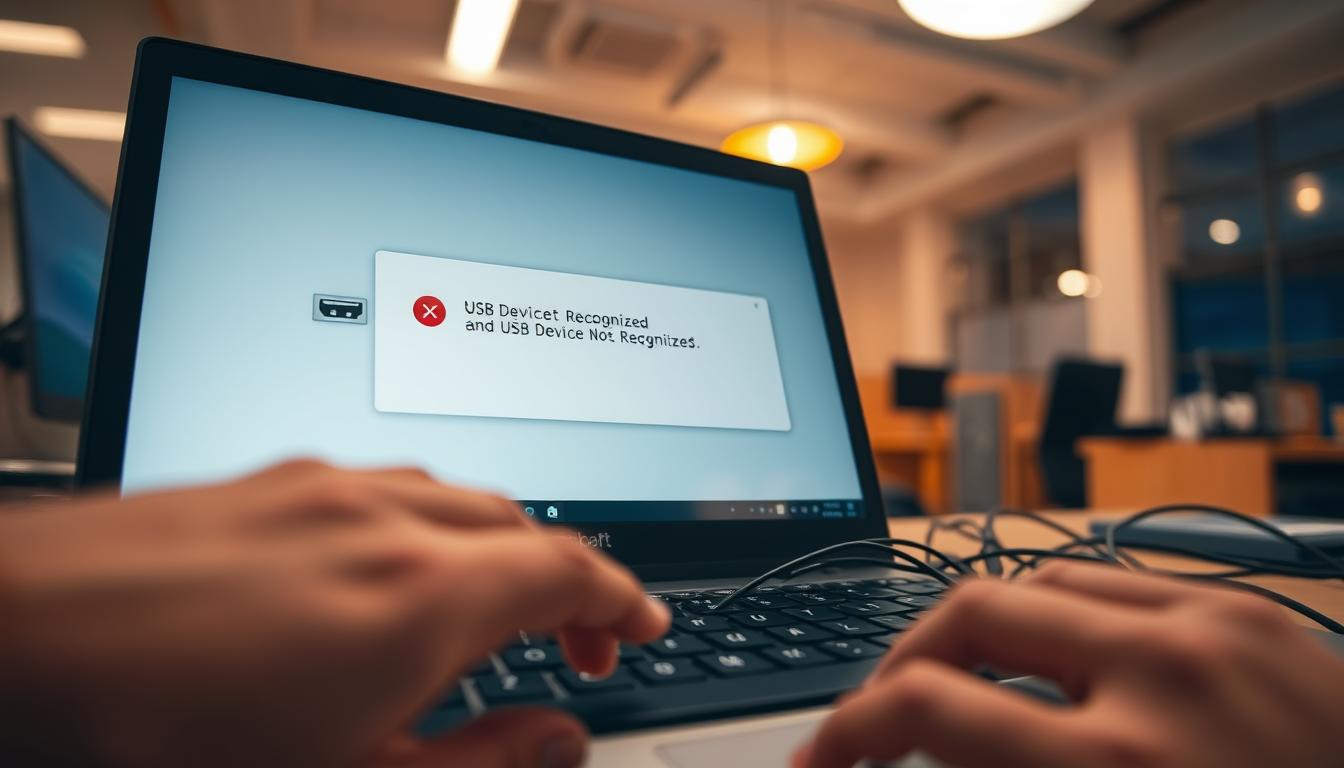
Ever connected a USB device and seen the “USB device not recognized” message on Windows? It’s a frustrating issue that can happen to anyone. It leaves you wondering why your USB isn’t detected on Windows 11. Knowing why this error occurs is key to fixing it fast.
Worn-out cables, faulty USB ports, and outdated drivers are common culprits. In this guide, we’ll look at the reasons and offer simple, step-by-step solutions. You’ll learn how to get your unknown USB device working again.
Key Takeaways
- This error is common and can happen to any user.
- Understanding the cause helps in effective troubleshooting.
- Physical damage or power issues may be the culprits.
- Proper steps can help resolve USB port not working scenarios.
- Stay tuned for both quick and advanced fix options.
What the Error Means
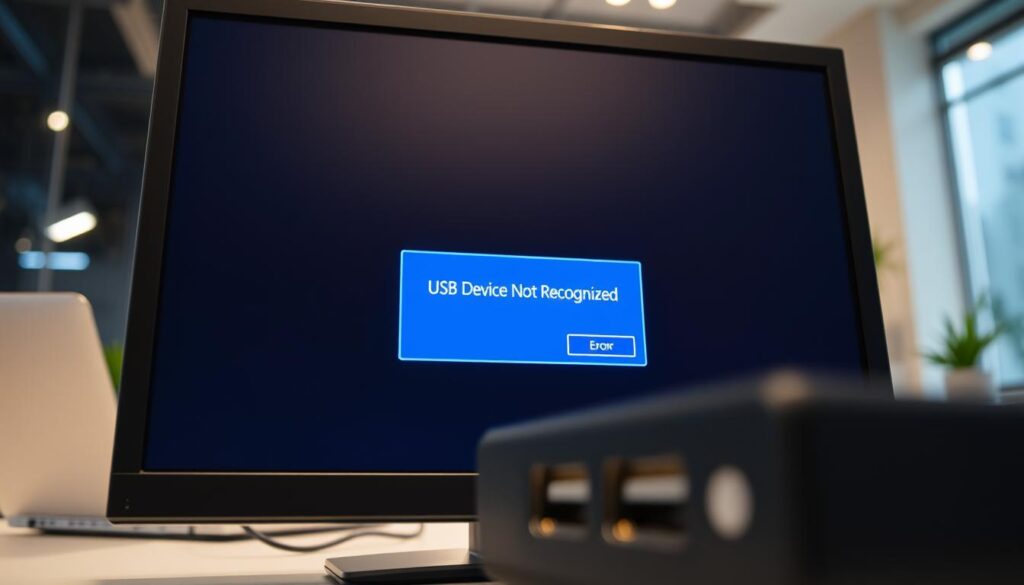
The “USB Device Not Recognized” error can come from many problems. It often relates to the connection or the device itself. Knowing if the issue is with the USB port or the device is key to solving it.
Malfunctioning USB ports can happen due to physical damage, dirt, or internal issues. Testing a different port can help figure out if the problem is with your hardware or the device you’re trying to use.
Port Issue vs Device Issue
Windows might show messages like “Unknown USB Device (Port Reset Failed)” if the port is faulty. This means the port can’t recognize the device. If switching ports fixes the problem, the original port was the issue.
If the problem stays after trying another port, it might be the device itself. This could be a malfunctioning external hard drive or printer causing the error.
Driver or Power Problem
Driver problems can also cause USB recognition issues. Outdated or corrupted drivers can block communication between your device and the system. Updating your drivers can often solve the problem.
Power supply is another factor, mainly for high-demand devices. Windows might cut power to USB ports to save energy. This can cause devices to malfunction. Checking and optimizing your power settings can help.
| Issue Type | Possible Causes | Solutions |
|---|---|---|
| Port Issue | Physical damage, dirt, or internal errors | Test another USB port |
| Device Issue | Malfunctioning hardware | Test the device on another computer |
| Driver Issue | Outdated or corrupted drivers | Update the windows usb driver |
| Power Issue | Power saving settings | Optimize power settings |
Quick Fixes
Dealing with a usb port not working or seeing an unknown usb device can be frustrating. But, there are quick fixes you can try. These steps can often solve common problems before you need to try more complex solutions.
Try Another USB Port
Start by trying a different USB port. If the device works fine on another port, the first one might have a problem. This simple test can help you figure out if the port is the issue.
Try Another Cable
If changing ports doesn’t help, try a different cable next. A bad USB cable can stop your device from talking to your computer. This leads to the annoying usb not detected windows 11 error. Using a cable you know works can help you find out if it’s the problem.
Restart PC
Restarting your computer can fix temporary issues that stop devices from being recognized. A simple reboot clears out old system data and resets hardware. This might solve the problem of seeing an unknown usb device when you try to connect.
Safe Fix Steps
If your USB device not recognized windows issue persists, don’t worry. There are safe and effective steps to try. Checking drivers and system settings might solve the problem.
Check Device Manager for Errors
Device Manager can show you any USB issues. Look for devices with an exclamation mark. This means there’s a problem. It could be with the drivers or if they need to be uninstalled.
If you still see an unknown usb device error, you need to take more steps.
Uninstall USB Device Driver and Replug
Uninstalling and reinstalling the windows usb driver can fix your issue. Here’s how to do it:
- Open Device Manager from your Control Panel.
- Find the USB device that’s causing trouble.
- Right-click on the device and choose “Uninstall.”
- After uninstalling, unplug the device, restart your PC, and plug it back in.
This method makes Windows reinstall the driver. It helps avoid errors like usb device malfunctioned.
Turn Off USB Selective Suspend
The USB Selective Suspend feature might cause problems, like the usb not detected windows 11 error. It saves power by turning off unused USB ports. Turning it off might fix your issue, but it could use more power, mainly on laptops. To change this setting, go to your Control Panel, then power options, and adjust the USB settings.
This step can help restore proper function, if your usb port not working is due to energy-saving settings.
Test on Another PC
To see if the USB device is the problem, try it on another computer. If it works there, the issue is with your PC. This helps you focus your troubleshooting efforts.
Advanced Fixes
If you’re still seeing the “usb device not recognized windows” error, it’s time for more advanced fixes. These steps can tackle deeper problems with your hardware or system setup.
Chipset Driver Update
Updating your chipset drivers can really boost USB port performance. These drivers help your motherboard talk well with USB devices. Check your motherboard’s official website for the latest drivers. Once you’ve installed them, restart your PC to see the changes.
Windows Repair (SFC/DISM)
If simple fixes don’t work, try using system repair tools. The System File Checker (SFC) and Deployment Imaging Service and Management Tool (DISM) can find and fix damaged system files. This might help with USB device recognition issues.
To use these tools, open the Command Prompt as an administrator. Then, run these commands:
- Type sfc /scannow and press Enter. This might take a while.
- Once SFC is done, type DISM /Online /Cleanup-Image /RestoreHealth and press Enter. This command fixes any problems SFC found.
These tools can fix your system’s integrity. This might solve the “usb device not recognized windows” problem when other fixes don’t work.
FAQs
Q: What does the “USB Device Not Recognized” error mean?
Q: How can I tell if the issue is with the USB port or the device?
Q: Why are my USB devices not detected on Windows 11?
Q: What should I do if the USB port is not working?
Q: How do I check for USB device driver issues?
Q: What steps should I take if my USB device malfunctioned?
Q: How can I fix an unknown USB device error?
Q: Can power supply issues affect USB device detection?
Q: What is the USB Selective Suspend feature, and how can it impact my devices?
Q: What should I do if all else fails?
Further Reading
If Windows sees the device but it won’t work, these are usually driver or service issues:
- Windows Update Stuck? Fix Download, Install, and Restart Loop (2026 Guide)
- Windows Apps Not Opening? Fix Apps Stuck or Crashing (2026 Guide)
- Bluetooth Not Working in Windows 11? Fix Pairing and Connection (2026 Guide)
- Windows Sound Not Working? Fix Audio in Windows (2026 Guide)
Browse more guides in Windows & PC