
Ever thought if one password is enough to keep your online info safe? With data breaches happening more often, it’s time to think differently. Setting up two-factor authentication (2FA) can greatly improve your online safety. This guide will show you how to easily enable 2FA, helping you keep your accounts safe.
We’ll cover what 2FA is, the best ways to set it up, and what to avoid. This way, you can keep your digital identity secure.
Key Takeaways
- Two-factor authentication adds another layer of security to your accounts.
- Enabling 2FA is crucial in mitigating risks from data breaches.
- Understanding how to set up 2FA is vital for all online users.
- Use authenticator apps for the best 2FA experience.
- Avoid common pitfalls, such as sharing codes and disabling 2FA.
What 2FA Means (Simple)
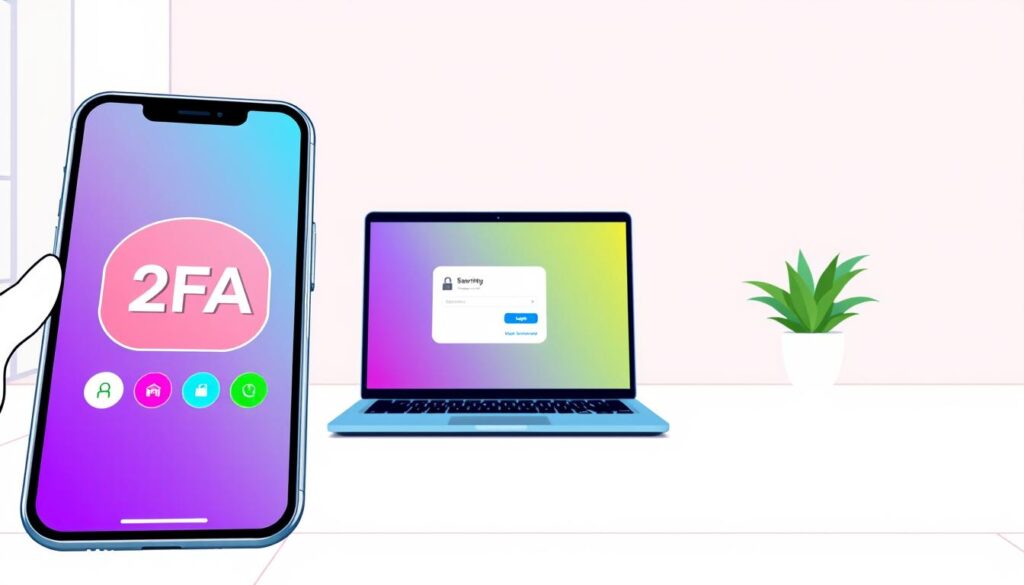
Two-factor authentication, or 2FA, adds an extra layer of security. It requires two different forms of identification to access an account. This is crucial because simple passwords can’t always protect us from threats.
Why Passwords Alone Fail
Using only passwords is risky. Hackers use tricks like phishing and automated attacks to get past them. Many people use the same password for many sites, making it easier for hackers to get into all of them.
That’s why two-step verification is so important. It adds an extra layer of protection. You need something you know (like a password) and something you have (like your phone). This makes your account much safer.
Best 2FA Options
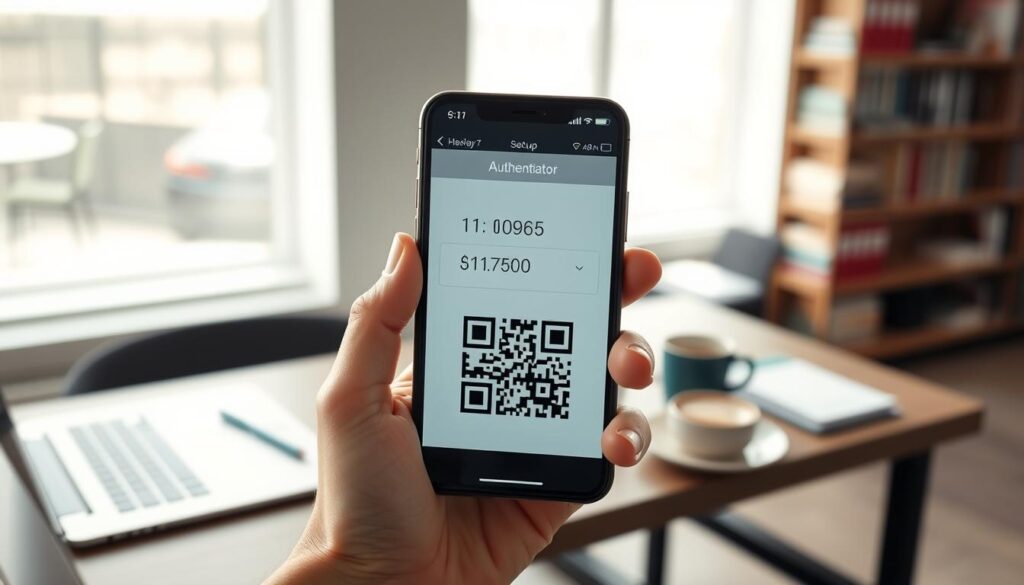
Choosing the right method for two-factor authentication (2FA) is key to better security. There are many options, each with its own level of protection. We’ll look at two popular ones: authenticator apps and SMS codes. It’s important to consider the pros and cons of each.
Authenticator App (Recommended)
An authenticator app, like Google Authenticator or Authy, is a strong choice for security. These apps create temporary codes that don’t need the internet. This makes them safe and easy to use.
Since the codes aren’t sent over the phone network, they’re safe from hackers.
SMS Codes (Better Than Nothing)
SMS codes offer some security by sending one-time codes via text message. They’re better than just using passwords. But, they’re not perfect.
For example, hackers can take over your phone number through SIM-swapping. This lets them get your SMS codes. It’s best to switch to an authenticator app for better security.
| Feature | Authenticator App | SMS Codes |
|---|---|---|
| Security Level | High | Moderate |
| Accessibility | Requires app installation | Text message functionality |
| Vulnerabilities | None over network | Susceptible to SIM-swapping |
Setup Steps (General)
Setting up two-factor authentication is key to keeping your accounts safe. Follow these easy steps to enable 2fa and boost your security.
Turn On 2FA in Account Security
First, go to the settings of the account you want to protect. Find the security section and look for two-factor authentication. Most platforms make it easy to enable 2fa, helping you protect your info.
Scan QR Code and Save Backup Codes
Once 2fa is enabled, you’ll see a QR code if using an authenticator app. Scan this code with your app. It’s also important to save any backup codes given. These codes can help recover your account if needed.
Test Login Once
Try logging in with your second factor to check everything works. This confirms your setup was successful. It also makes sure your efforts to protect your accounts with 2fa are working.
What to Avoid
The two factor authentication setup guide helps keep your online world safe. But, some mistakes can weaken your security. Avoiding these errors keeps your accounts protected from unwanted access.
Sharing Codes
Never give out your 2FA codes to anyone, not even people you trust. These codes are for proving who you are. If you share them, you risk letting others into your accounts, undoing the security 2FA provides.
Disabling 2FA After Setup
It might be tempting to turn off 2FA after setting it up for ease. But don’t do it. Turning off 2FA makes you more vulnerable and defeats the purpose of using it. Always keep 2FA on to keep your accounts safe.
FAQs
In our two factor authentication setup guide, users often ask about the best recovery options if they lose their authentication codes. Most services provide backup codes during setup. It’s crucial to save these codes in a secure location. If you lose access to your primary 2FA method, like an app or your phone, these codes can help you regain access to your account effectively.
Another frequent question involves the differences between various 2FA methods. While authenticator apps are widely recommended for their security and offline functionality, SMS codes are still better than using passwords alone. Understanding these differences can help you make informed choices on how to enable 2FA and protect your accounts.
Lastly, maintaining optimal account security while using 2FA is essential. Regularly update your recovery options and keep your authentication method secured. Always be cautious about where you enable 2FA and ensure your personal devices are protected from unauthorized access. Following these practices will enhance your online safety significantly.
FAQ
Q: What is Two-Factor Authentication (2FA)?
A: Two-Factor Authentication (2FA) adds an extra layer of security. It requires two forms of identification to access an account. This is more than just a password.
Q: How do I set up 2FA for my accounts?
A: To set up 2FA, go to your account settings. Then, find the security section and turn on two-factor authentication. Follow the steps to scan a QR code or get codes via SMS.
Q: What is the difference between SMS codes and authenticator apps?
A: SMS codes send a one-time code via text message. This method is less secure because of risks like SIM-swapping. Authenticator apps, like Google Authenticator, are safer. They generate codes directly on your device.
Q: What should I do if I lose access to my authenticator app?
A: If you lose access to your authenticator app, use the backup codes. These were given to you when you set up 2FA. Make sure to save them safely.
Q: Can I share my authentication codes with someone else?
A: No, you should never share your authentication codes. They are for verifying your identity. Sharing them can let someone else into your account.
Q: Why should I not disable 2FA after setting it up?
A: Disabling 2FA makes your account more vulnerable to unauthorized access. It’s important to keep it on to protect your account from threats.
Q: Are there any risks associated with using SMS for 2FA?
A: Yes, SMS for 2FA is at risk from attacks like SIM-swapping. This allows an attacker to take over your phone number and get your codes. It’s safer to use an authenticator app.
Further Reading (lock down accounts and stop fake alerts)
If you’re improving security, these quick guides help prevent scams and clean infected browsers:
- How to Remove Malware in Windows 11: Safe Steps
- Windows Defender Settings for Beginners: What to Turn On
- Remove Browser Notification Spam: Stop Pop-Ups
- Fake Virus Alert Pop-Up Removal: What to Do
Browse more privacy and security guides in Security & Privacy