
Ever wondered how a simple click can turn your browser into a source of unwanted noise? Many users face this issue with browser notification spam. By 2026, these notifications have become a common problem, appearing as harmless alerts but leading to intrusive ads and threats like the chrome notification virus.
Knowing how to remove browser notification spam is key to taking back control of your online space.
Key Takeaways
- Browser notifications can disguise themselves as useful alerts.
- Many users unknowingly allow unwanted notifications.
- Notifications from websites may lead to scams and phishing attempts.
- It’s important to take quick actions to stop notifications from websites.
- Learning how to manage your notification settings can enhance your browsing experience.
Why You’re Seeing These Ads
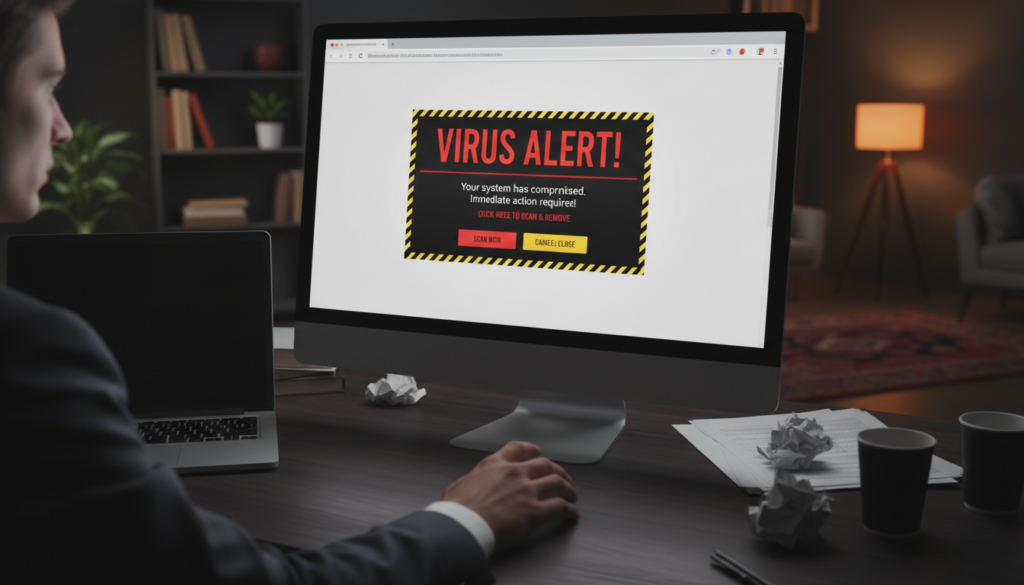
Unwanted notifications can pop up for many reasons. It’s important to understand why they happen. This knowledge helps you tackle the chrome notification virus or edge notification spam. You’ll learn how to stop these ads and take back control of your online experience.
You Allowed Notifications by Mistake
Accidental permission is a big reason for unwanted ads. Sometimes, we click “Allow” without realizing what we’re doing. This can flood your screen with annoying ads. It’s key to manage your site permissions to avoid these issues.
Push Notification Abuse
Some websites misuse push notifications, sending ads without your consent. This turns your browser into a spam machine. It’s important to spot these scams to stop the spam and keep your browsing safe.
Quick Fixes

When you’re bombarded with too many website notifications, quick fixes can help. You can block these notifications or turn them off for now. Here are simple steps to help you take back control.
Block the Site Notifications
To stop unwanted website notifications, start with your browser settings. If you’re using Chrome, follow these steps:
- Open Chrome and click on the three vertical dots in the upper right corner.
- Select Settings.
- Navigate to Privacy and Security.
- Click on Site Settings.
- Find and select Notifications.
- Here, you can see the list of sites allowed to send notifications. Click Remove for any unwanted sources to remove browser notification spam.
Turn Off Notifications Temporarily
If you need a quick fix, you can turn off notifications for now. In the same Notifications settings, choose the option Don’t allow sites to send notifications. This stops any more spam and gives you time to solve the problem fully.
Safe Fix Steps
First, tackle immediate issues. Then, focus on preventive measures for a clean and safe browsing experience. Start by addressing unwanted sites in your notification settings to remove browser notification spam.
Remove the Bad Site from Allowed List
Open your Chrome settings and go to the Notifications section. Look at the list of sites allowed to send notifications. Remove any sites you don’t know or trust. This helps you control what your browser can do.
Check and Remove Extensions
Next, check your browser’s Extensions in the settings. Look through the installed extensions and delete any that seem suspicious or unused. Some extensions might have harmful scripts that cause notification spam.
Run Windows Security Scan
Lastly, run a Windows Security Scan. Open Windows Security and choose to do a full scan. This will find and remove any malware affecting your browser settings and stop unwanted notifications.
Advanced Fixes
Dealing with edge notification spam can be really frustrating. If simple steps don’t work, you might need more advanced solutions. Options include resetting your browser or making a new browser profile. Each choice has its own benefits and downsides, so think carefully before deciding.
Reset Browser (Warning)
Resetting your browser can fix issues caused by a chrome notification virus. It brings your browser back to its original state. This means losing all bookmarks, saved passwords, and extensions.
Before you reset, make sure to back up any important data. This action might solve your notification problems but could also mean losing some data.
Create a New Browser Profile (If Needed)
Creating a new browser profile is a gentler option than resetting. It lets you start over without messing with your current profile. If edge notification spam was caused by settings or extensions, it should disappear in the new profile.
This method is a good way to keep using your browser while you figure out the problem.
FAQs
Q: What should I do if I accidentally allowed notifications from a website?
Q: How can I stop notifications from websites altogether?
Q: Are ad blockers effective against notification spam?
Q: How do I find out which extensions might be causing notification spam?
Q: What steps can I take to prevent future notifications?
Q: What happens if I reset my browser?
Q: Can creating a new browser profile help with notification spam?
Further Reading (when pop-ups turn into malware)
If the spam keeps coming back, or you see scary warnings, these are the next steps:
- Fake Virus Alert Pop-Up Removal: What to Do
- How to Remove Malware in Windows 11: Safe Steps
- Windows Defender Settings for Beginners: What to Turn On
- Two-Factor Authentication Setup Guide: Safer Logins
Browse more privacy and security guides in Security & Privacy