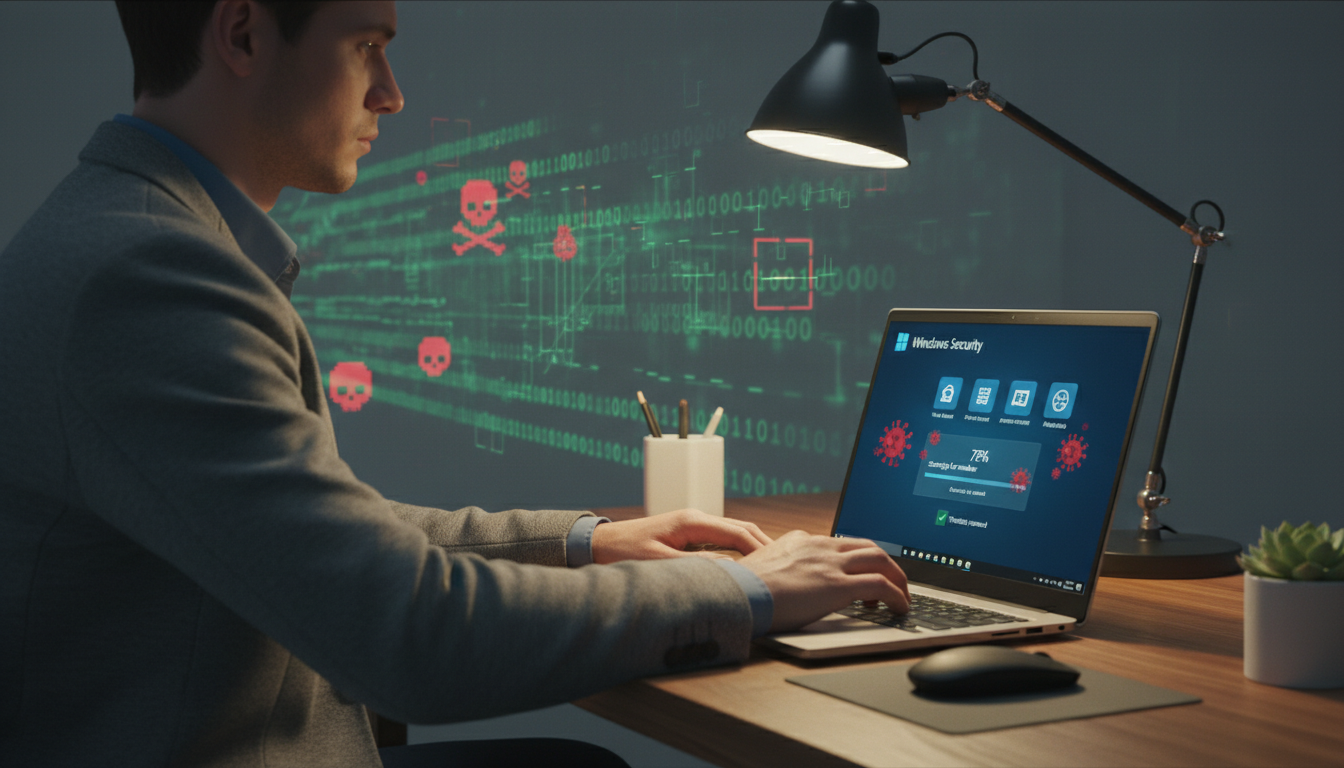
Ever thought your Windows 11 device might have hidden malware? It’s crucial to know how to remove malware in Windows 11 to protect your computer and data. Malware can slow down your system, steal your info, or make apps useless. We’ll show you safe ways to remove malware in Windows, keeping your device safe without needing advanced steps.
Windows 11 comes with tools like Windows Security and Microsoft Defender. These tools make removing viruses easy if you take the right steps.
Key Takeaways
- Recognize the signs of malware on your Windows 11 PC.
- Utilize Windows Security for an effective malware removal process.
- Regular updates and vigilance can prevent future malware infections.
- Disconnecting from the internet can be a strategic first step.
- Understand advanced fixes like Safe Mode cleanup for stubborn malware.
Signs You Might Have Malware
Malware can sneak onto your system without you noticing at first. But, there are signs that can tell you something’s wrong. Being alert helps catch threats early. Here are some signs that might mean your device has a problem.
Pop-Ups and Redirects
Seeing lots of pop-ups or being redirected to weird sites is a red flag. These issues can mess up your web browsing. Clearing your browser cache and checking extensions can help fix these problems.
Slow PC and High CPU
If your computer starts running slow, it might have malware. A big spike in CPU use while doing simple tasks is a bad sign. This makes your computer slow and hard to use. Keep an eye on your task manager for unusual CPU activity.
Unknown Apps
Discovering apps you didn’t install is a clear sign of malware. If you find software you didn’t download, it’s a warning sign. Check your installed programs often for anything odd. Quick action can stop these threats from getting worse.
Quick Answer

When you think your system has malware, act fast. This section shows key steps for quick malware removal.
Disconnect from Internet (Optional)
If you think your device is infected, cut it off from the internet. This stops malware from spreading to other devices on your network.
Run Windows Security Full Scan
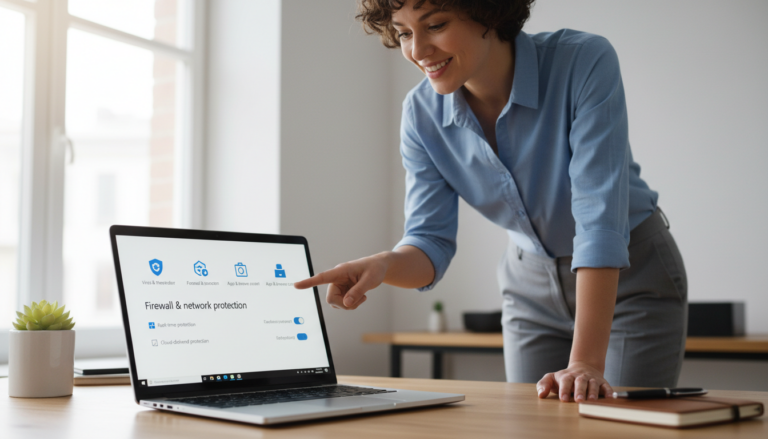
Go to the Virus & threat protection settings in Windows Security. Start a full scan to find and remove harmful software. This scan will catch many types of malware.
Remove Suspicious Extensions
Look at your web browser for any strange or unknown extensions. Getting rid of these can help a lot. Many extensions have harmful code that messes with your online activities.
Safe Fix Steps
To remove malware safely, follow a few key steps. First, update your Windows Security definitions. This keeps your system protected against the latest threats.
Update Windows Security Definitions
It’s vital to keep your Windows Security definitions current. Go to the Windows Update section in your settings. Make sure automatic updates are on. This lets your antivirus fight off new threats.
Run Offline Scan (Warning)
Think about doing a Microsoft Defender Offline Scan. It finds and removes tricky malware. Remember, this scan requires a reboot. Save all your files before starting.
Remove Unwanted Programs (Apps and Features)
Keep your system clean by checking Apps and Features. Remove any programs you don’t need. Tools like the Windows Malicious Software Removal Tool (MSRT) can also help get rid of tough infections.
Advanced Fixes
Sometimes, getting rid of malware needs more than basic steps. These advanced methods can handle tough problems that simple fixes can’t solve.
Safe Mode Cleanup (If Needed)
To start in Safe Mode, hold the Shift key while your PC restarts. This reduces background activities, helping you spot and remove malware. After entering Safe Mode, run a complete system scan with your antivirus. This might help you remove malware more effectively.
Reset Browser Settings (Warning)
If you think your browser is infected, resetting its settings might help. This action can return your browser to its original state but could erase customizations. Be careful; resetting might also delete bookmarks and other saved data. Check your browser’s help section for safe reset instructions.
FAQs
Q: How can I be sure my PC is malware-free?
A: To keep your PC safe, use Windows Security for a full scan. Make sure your virus definitions are up to date. Watch your system for odd behavior after cleaning. You might want to use more tools to check for malware.
Q: What are the best practices to prevent malware infections?
A: Stay safe by updating your OS and apps regularly. Use strong passwords and avoid unknown downloads. Also, check your browser extensions often. Don’t forget to turn on your antivirus’s real-time protection.
Q: Can malware affect my internet browsing experience?
A: Yes, malware can ruin your browsing. It might cause pop-ups, slow speeds, and unwanted changes. Browser hijackers can even change your home page or search engine without asking.
Q: What should I do if my antivirus software doesn’t detect malware?
A: If your antivirus misses malware, try a Microsoft Defender Offline Scan. You can also use the Windows Malicious Software Removal Tool (MSRT) for a deeper check.
Q: How do I remove a browser hijacker?
A: To get rid of a browser hijacker, reset your browser to default. Remove any suspicious extensions. Also, check your homepage and search engine settings to make sure they’re right.
Q: Is it safe to run my computer in Safe Mode for malware removal?
A: Yes, Safe Mode is safe and can help remove malware. It stops many background processes, making it easier to find and remove malware. Always do a full scan in Safe Mode for the best results.
Further Reading (stop it coming back)
After cleanup, use these to harden Windows and avoid the same scams again:
- Windows Defender Settings for Beginners: What to Turn On
- Remove Browser Notification Spam: Stop Pop-Ups
- Fake Virus Alert Pop-Up Removal: What to Do
- Two-Factor Authentication Setup Guide: Safer Logins
Browse more privacy and security guides in Security & Privacy