
Ever worried about losing your files or system to errors? Creating a restore point in Windows 11 can help. It’s a simple way to go back to a stable version of your system. This guide will show you how to do it easily, so you can relax knowing your computer is safe.
Key Takeaways
- A restore point acts as a snapshot of system files and settings.
- Creating restore points is essential for recovering from system errors.
- The process is simple and accessible for all users.
- You can create multiple restore points as needed.
- Understanding what restore points can and cannot fix is crucial.
What a Restore Point Does

A restore point is like a snapshot of your system. It lets you go back to a previous state if problems happen. It’s key to keeping your computer running smoothly.
This feature mainly looks at system parts, not personal files. So, if you’re wondering if it can fix issues from software or updates, the answer is yes. It’s all about how system restore works.
What It Can and Can’t Fix
System restore focuses on the operating system and apps. It can fix problems like:
- Bad app installations
- Driver issues
- Failed system updates
But, restore points can’t fix personal file changes or accidental deletions. It’s important to know what it can and can’t do to manage your system well.
Quick Setup
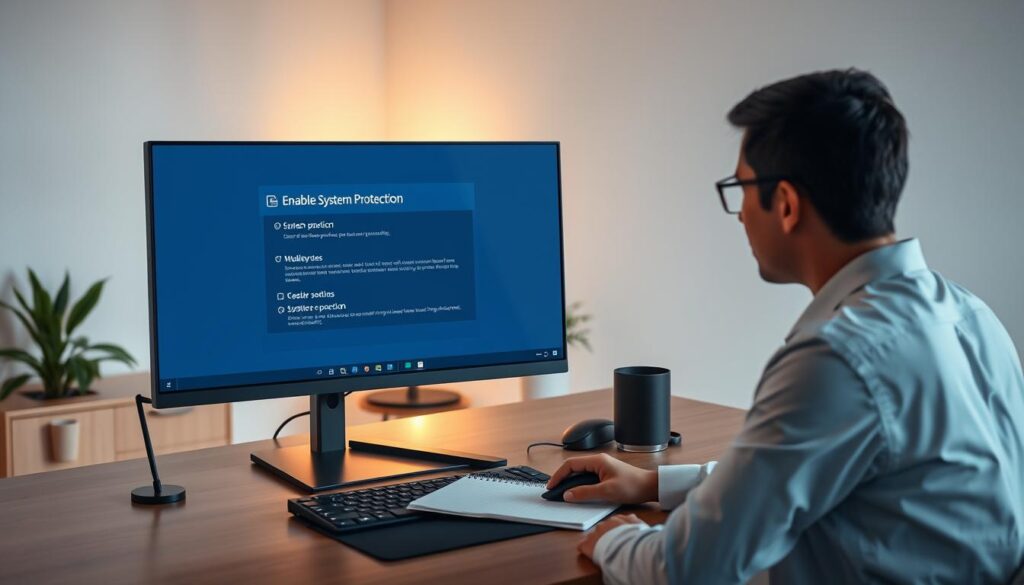
Setting up system protection is key to keeping your Windows 11 safe. When you turn on system protection, your system can make restore points on its own. This lets you go back to how things were if software problems or changes happen. Here’s how to turn on system protection and make a restore point.
Turn On System Protection
To begin, you need to turn on system protection for your main drive, usually the C: drive. Just follow these steps:
- Open the Control Panel.
- Navigate to “System and Security.”
- Select “System.”
- Click on “System Protection” on the left sidebar.
- Select your drive and click on “Configure.”
- Select “Restore system settings and previous versions of files.”
- Click “OK” to enable system protection.
Create a Restore Point Now
After system protection is on, making a restore point is easy. Here’s how:
- Go back to the “System Protection” tab.
- Click the “Create” button.
- Type a description for the restore point to help you identify it later.
- Click “Create” again to finalize the process.
Creating a restore point often is very helpful when you need to undo changes or fix system errors. Keep up with your system protection settings.
How to Use System Restore
Using System Restore in Windows 11 is easy when you need to go back to a previous state. First, you need to open the System Restore tool. Here, you can pick from restore points that show when your system was working well.
Restore to a Previous Point
To start, open the System Restore tool and pick a point before problems started. This process changes system files, settings, and apps, but not personal files like documents or photos. It’s a safe way to fix issues without losing your data. After choosing a restore point, you can start the restoration.
What Happens to Apps and Drivers
It’s important to know what happens to apps and drivers during restore. Any apps or drivers installed after the chosen restore point will be removed. You might need to reinstall or update these to keep everything working right. Keeping track of new software helps you fix any issues after restoring.
What to Avoid
Restore points are useful, but knowing what to avoid is key. Many people think they can only use restore points for backups. This can cause issues if you need to recover more data.
Relying on Restore Points as Backup
Restore points mainly save system settings and some files. They don’t protect personal data or app backups. This is a big limitation. Experts say to always do full backups.
Use external drives or special software for backups. This way, you can avoid losing data or facing system failures.
Here’s a good plan to keep your data safe:
- Make full backups on external drives often.
- Choose backup software that fits your needs.
- Set up automatic backups to keep your data safe.
Remember, a solid backup plan is better than just relying on restore points for your system’s safety.
FAQs
Q: How do I enable system protection in Windows 11?
A: To enable system protection, start by going to the Control Panel. Then, navigate to System and Security. Click on System.Next, select “System Protection” on the left side. Choose your primary drive, usually C:. Click “Configure.” Turn on system protection and set the disk space for restore points.
Q: Can I restore my system to a point before a software installation?
A: Yes, you can restore your system to a point before a software installation. If you have a restore point created before the installation, use the System Restore tool. This will remove the software installed after the selected restore point.
Q: What happens to my personal files if I restore my system?
A: Restoring your system does not affect personal files like documents and photos. It will revert system files and settings. This may remove applications installed after the selected restore point.
Q: How can I create a restore point in Windows 11?
A: To create a restore point, go to the Control Panel. Select System and Security, then System. Click on “System Protection,” and under the “System Protection” tab, click “Create.”Follow the prompts to capture the current state of your system.
Q: Is it necessary to keep multiple restore points?
A: Keeping multiple restore points is beneficial. It allows you to choose the most suitable point for recovery. But, be mindful of disk space usage, as restore points can occupy significant storage.
Q: What should I do if the restore point option is missing?
A: If the restore point option is missing, first ensure system protection is enabled on your drive. If it’s enabled but still absent, check for Windows updates. Run system diagnostics to identify any potential issues.
Q: Are restore points a substitute for full backups?
A: No, restore points are not a substitute for full backups. They only cover system files and settings. For complete data security, perform regular full backups using external storage or dedicated software.
Q: How do I manage the disk space used by restore points?
A: To manage disk space, go to the “System Protection” settings. Select your drive and click on “Configure.” Here, you can adjust the disk space for restore points or delete older restore points to free up space.
Further Reading
Restore points help with system changes, but they won’t protect all your personal files. These guides complete the plan:
- How to Back Up Windows 11: Simple and Safe Methods
- Windows Backup vs System Image: What’s the Difference?
- External Hard Drive Backup Best Practice: Safer Copies
- Recover Deleted Files in Windows 11: Step-by-Step Fix
Browse more step-by-step tutorials in Guides