Ever seen a pop-up warning that says your computer has a virus? You’re not alone. These alerts, called scareware, try to scare you into downloading bad software or calling unknown numbers. It’s important to know how these fake alerts work to stay safe online.
This guide will teach you how to spot and deal with these pop-ups. You’ll learn how to remove fake virus alerts safely and easily.
Key Takeaways
- Fake virus alert pop-ups are a form of scareware designed to panic users.
- Responding calmly and knowing the steps to take can protect your device.
- Do not download anything or call numbers provided by these pop-ups.
- Regularly running security scans helps maintain your device’s health.
- Awareness of how these scams operate can prevent future attacks.
- Staying vigilant about browser settings is essential for safe browsing.
What These Pop-Ups Really Are
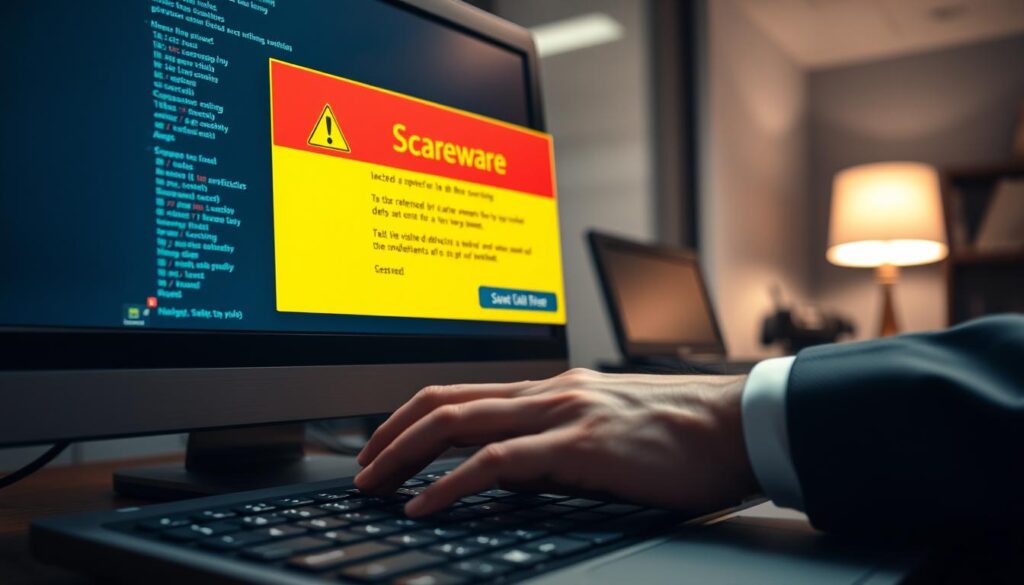
It’s important to know what these pop-ups mean when you’re online. Spotting scams helps you stay safe from harmful tricks.
Scareware and Fake Warnings
Scareware tricks you with scary messages to get you to download bad software. You might see a “your PC is infected” pop-up. It says your computer is in danger.
These pop-ups look like they’re from trusted brands like Microsoft or Apple. They try to make you trust them.
They might say your computer is being attacked or you need urgent help. This can lead to losing your data or money. Knowing about these fake warnings helps keep you safe online.
Why They Keep Coming Back
Scareware keeps coming back because it plays on your emotions. It scares you into acting fast, which can cause more problems. More and more people are falling for these tricks.
When you click on these ads, you might get malware or get scammed again. It’s key to keep your security software up to date. Always be careful online. Never click on suspicious messages, like those on Chrome.
Quick Answer (Do This First)
When you see a fake antivirus popup, act fast to protect your system. If you get a pop-up saying “your pc is infected pop-up,” follow these steps right away. This will keep your device safe.
Close the Tab (Don’t Click Anything)
First, close the tab with the browser virus popup. Don’t click on any buttons or links in the pop-up. This can install malware. If closing the tab doesn’t work, use Task Manager on Windows or Force Quit on Mac to shut your browser.
Turn Off Browser Notifications
To avoid future fake virus alert pop-ups, change your browser settings. Go to the “Privacy and Security” section of your browser settings. There, manage notifications and block unwanted alerts. This step greatly reduces the risk of unexpected pop-ups.
Run a Windows Security Scan
After dealing with the pop-up, run a security scan. Use Windows Security or a trusted antivirus program for a thorough check. This step finds and removes any threats to your device. Running this check after an incident gives you peace of mind and keeps your system safe.
Safe Fix Steps
Dealing with scareware and its stress needs a few simple steps. These actions help you take back control of your computer and stop those annoying pop-ups. Follow these steps closely to get rid of the unwanted interruptions.
Remove Suspicious Browser Extensions
Check your browser for any odd extensions that might have been added without your permission. Go to your browser settings and look over the extensions or add-ons list. Delete anything you don’t recognize or didn’t mean to install, as they can mess with your browser and cause pop-ups.
Reset Browser Settings (Warning)
If pop-ups keep showing up even after removing extensions, it might be time to reset your browser settings. This resets your browser to its original state, removing changes made by scareware. But, this will also delete saved passwords and other custom settings, so make sure to back up important data first.
Clear Site Permissions and Notifications
To stop malicious sites from sending unwanted notifications or pop-ups, clear site permissions. In your browser’s settings, check and remove permissions given to sites you don’t know or don’t need. This helps protect your browser from future fake virus alert pop-up problems.
Scan with Windows Security (Full Scan)
Lastly, do a full scan with Windows Security or a trusted third-party antivirus program. A detailed scan of your system finds and removes any remaining threats. Keeping your antivirus up to date also helps protect you from scareware’s changing tactics, keeping you safe from alerts like “your PC is infected pop up.”
Advanced Fixes
If you keep seeing fake antivirus pop-ups, you need to dig deeper. Look at what apps start up automatically. This might show you unwanted programs that cause these alerts, like “your pc is infected pop up.”
Check Startup Apps for Malware
To see what starts when your computer boots, use the Task Manager on Windows. Here’s how:
- Press Ctrl + Shift + Esc to open Task Manager.
- Navigate to the Startup tab.
- Look over the list for anything odd or suspicious.
- Choose any shady items and click Disable to stop them from starting automatically.
This can help control harmful software that runs without your permission. It might stop the fake virus warnings you keep seeing.
Safe Mode Scan (If Needed)
If the problem doesn’t go away, try running in Safe Mode. This mode starts Windows with just the basics, making it easier to find malware. To start Safe Mode:
- Restart your computer.
- Press the F8 key repeatedly as it boots up. You’ll see the Advanced Boot Options menu.
- Choose Safe Mode and hit Enter.
In Safe Mode, run a full scan with your antivirus. This ensures you catch and remove any threats to your device’s safety.
FAQs
Q: What is a fake virus alert pop-up?
Q: How can I recognize a fake antivirus pop-up?
Q: What should I do if I encounter a “Your PC is infected” pop-up?
Q: What are effective steps to remove a browser virus pop-up?
Q: How can I prevent future fake virus warnings?
Q: What should I do if pop-ups persist after following these steps?
Q: When should I consider running my system in Safe Mode?
Q: Are there any new scams I should be aware of?
Further Reading (make sure you’re actually safe)
Fake alerts are often paired with notification spam or unwanted software. These guides help you fully clean and prevent it:
- Remove Browser Notification Spam: Stop Pop-Ups
- How to Remove Malware in Windows 11: Safe Steps
- Windows Defender Settings for Beginners: What to Turn On
- Two-Factor Authentication Setup Guide: Safer Logins
Browse more privacy and security guides in Security & Privacy