Have you ever thought about how much your digital stuff is worth? As we move more online, keeping your data safe is key. The 2026 external hard drive backup checklist helps you protect your digital treasures.
This guide will show you how to pick the best drive, set up your backups, and keep them safe. It’s filled with expert tips and advice. You’ll learn how to prevent data loss and keep your files secure.
Key Takeaways
- Understand the importance of choosing the right external hard drive for backups.
- Regularly schedule backups to avoid data loss.
- Implement safe habits, such as unplugging backups when not in use.
- Maintain multiple copies of important files on different drives.
- Be aware of what common mistakes to avoid with your backup process.
Choose the Right Drive
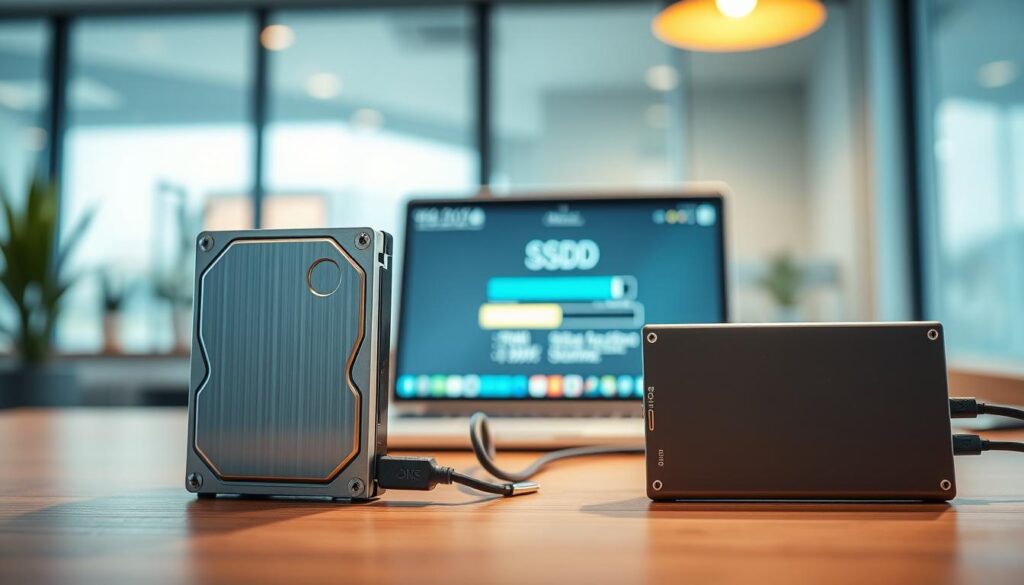
Choosing the right external hard drive is key for managing your backups well. Knowing the differences between HDDs and SSDs is crucial. Each has its own advantages and disadvantages, helping you pick the best drive for your needs.
HDD vs SSD for Backups
When deciding between HDD and SSD for backups, think about your storage needs and budget. HDDs are great for storing lots of data at a lower cost. They’re perfect for those needing lots of space without spending a lot.
SSDs, on the other hand, are faster and more reliable. They don’t have moving parts, making them ideal for quick data access and durability.
Size and Reliability Basics
Consider reliability and performance when choosing a backup drive format. HDDs come in sizes from 500 GB to several terabytes, ideal for large data collections. SSDs, though smaller, offer faster speeds. This makes them great for quick backups, even for files that change often.
By looking at these factors, you can pick the best drive for your backup needs.
Quick Setup
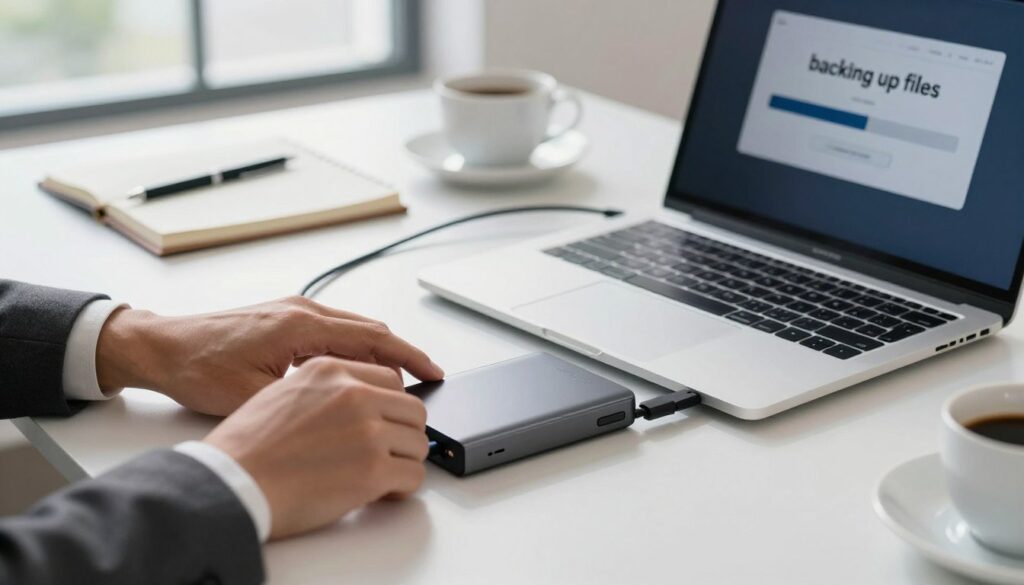
Starting with an external hard drive backup is easy. A simple and organized setup makes managing your files a breeze. A good backup folder setup helps you find files quickly.
Create a Simple Backup Folder
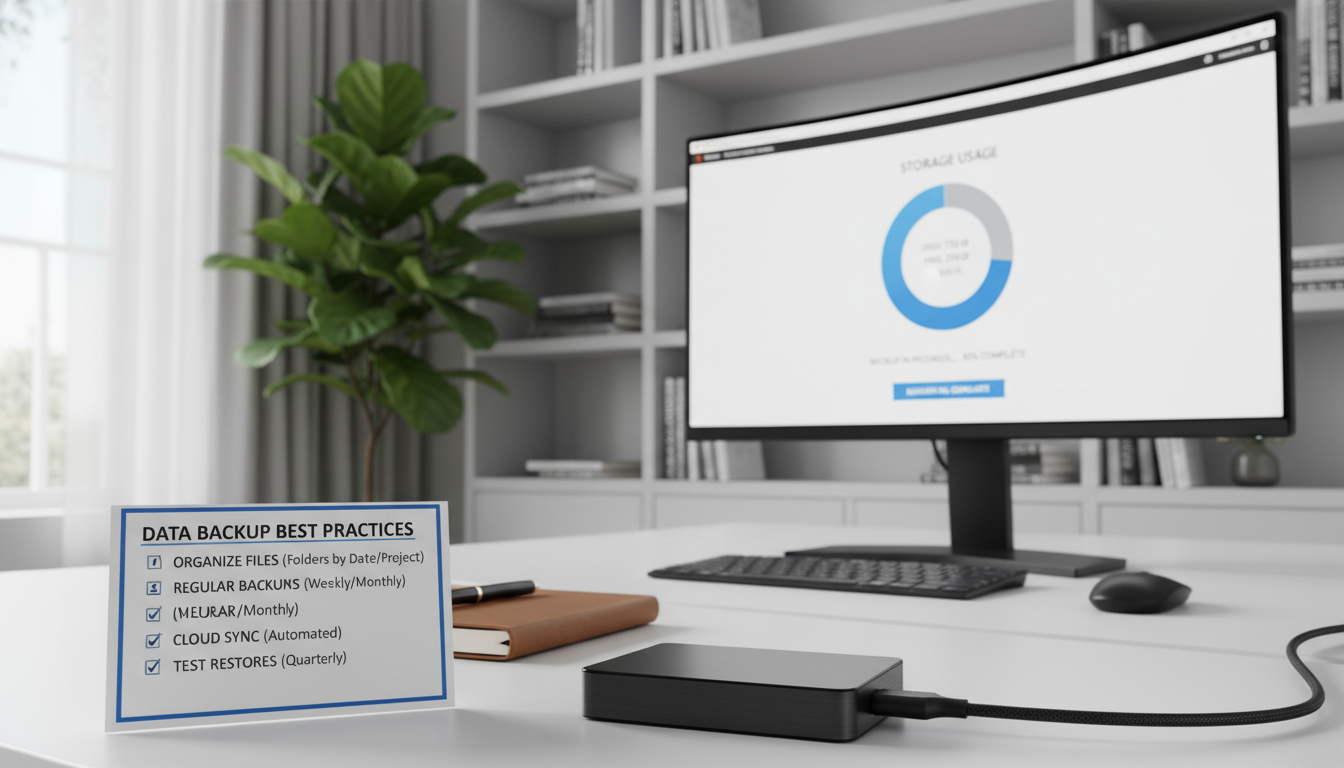
First, make a backup folder on your external hard drive. Choose a name that’s easy for you to remember. Organize folders by project, date, or importance.
This makes it easier to find your files when you need them. A well-organized folder setup makes your backup routine more efficient.
Schedule Weekly Backups
Next, decide how often to backup. Weekly backups are a good balance between safety and resource use. Set up your backups during off-peak hours to avoid interruptions.
Using software to automate backups makes things simpler. It ensures your files stay updated on the external hard drive.
| Backup Frequency | Pros | Cons |
|---|---|---|
| Weekly | Good balance of safety and convenience | May miss minor changes between backups |
| Daily | Least amount of data loss | More resource-intensive and time-consuming |
| Monthly | Less effort needed | Higher risk of data loss |
Safe Backup Habits
To keep your backups safe, follow strong habits. Safe backup practices help protect your data from loss. Here are some key strategies:
Keep One Copy Unplugged
Always unplug one backup drive when not in use. This step helps avoid malware or ransomware attacks. By doing this, you protect your data from threats.
Use Two Drives If Possible
Using two external drives adds extra security. Switch the drives for backups, keeping one off-site or in a different place. This method gives you peace of mind and protects against data loss.
Label Dates and Versions
Labeling your backup drives with dates and versions is key. It makes finding the latest backups easy. Use a simple labeling system for clear organization.
What to Avoid
Knowing what not to do is key to good backup practices. Some common mistakes can really hurt your backup efforts. By avoiding these, you can better protect your data.
Leaving Drive Connected Always
Always having your external hard drive plugged in is risky. It can cause file damage, hardware failure, or let others see your files. To avoid these problems, only plug it in when you’re backing up or using files. This way, you’re less likely to face threats.
Saving Only One Copy
Having just one backup copy is dangerous. If that drive fails or gets damaged, you’ll lose all your data. A smart backup plan is to keep multiple copies. Use different drives or places to store them. Always check your drives before using them again. Having a backup plan is crucial for keeping your data safe.
| Risk Factor | Impact | Suggested Solution |
|---|---|---|
| Leaving drive connected | Increased risk of corruption | Disconnect after use |
| Single backup copy | Complete data loss | Use multiple backup drives |
| Neglecting drive health | Unexpected drive failure | Regularly check drive status |
FAQ
Q: How often should I backup my external hard drive?
A: Back up your drive at least once a week. If you change files often, do it daily. This way, you won’t lose important data.
Q: What format should my backup drive be?
A: Use NTFS for Windows and APFS or HFS+ for Mac. Pick a format that matches your computer’s operating system for the best results.
Q: How can I securely store my backups?
A: Store your backup drive in a cool, dry place. Avoid humid areas. Also, encrypt your backups to keep them safe from unauthorized access.
Q: What’s the best way to backup files to an external hard drive?
A: Organize your files into folders on your computer first. Then, plug in your external drive. Drag and drop or copy and paste the folders to the drive.
Q: How can I keep my backups safe from malware?
A: Keep one backup drive unplugged when not in use. This reduces the chance of malware attacking your files.
Q: Is drive encryption really necessary?
A: Yes, encrypting your backup drive is key to keeping your data safe. It protects your files from unauthorized access.
Q: Should I get one large drive or multiple smaller drives for backups?
A: Using two smaller drives and rotating them is often a good idea. It adds an extra layer of security and keeps copies in different places.
Q: What are the risks of leaving my external hard drive connected all the time?
A: Leaving your drive connected can cause data corruption, unauthorized access, or malware attacks. It’s safer to only connect it when needed.
Further Reading (avoid losing backups)
If you want fewer failed restores and fewer “missing file” surprises:
- How to Back Up Windows 11: Simple and Safe Methods
- Windows Backup vs System Image: What’s the Difference?
- How to Create a Restore Point in Windows 11
- Recover Deleted Files in Windows 11: Step-by-Step Fix
Explore more beginner-friendly help posts in Guides