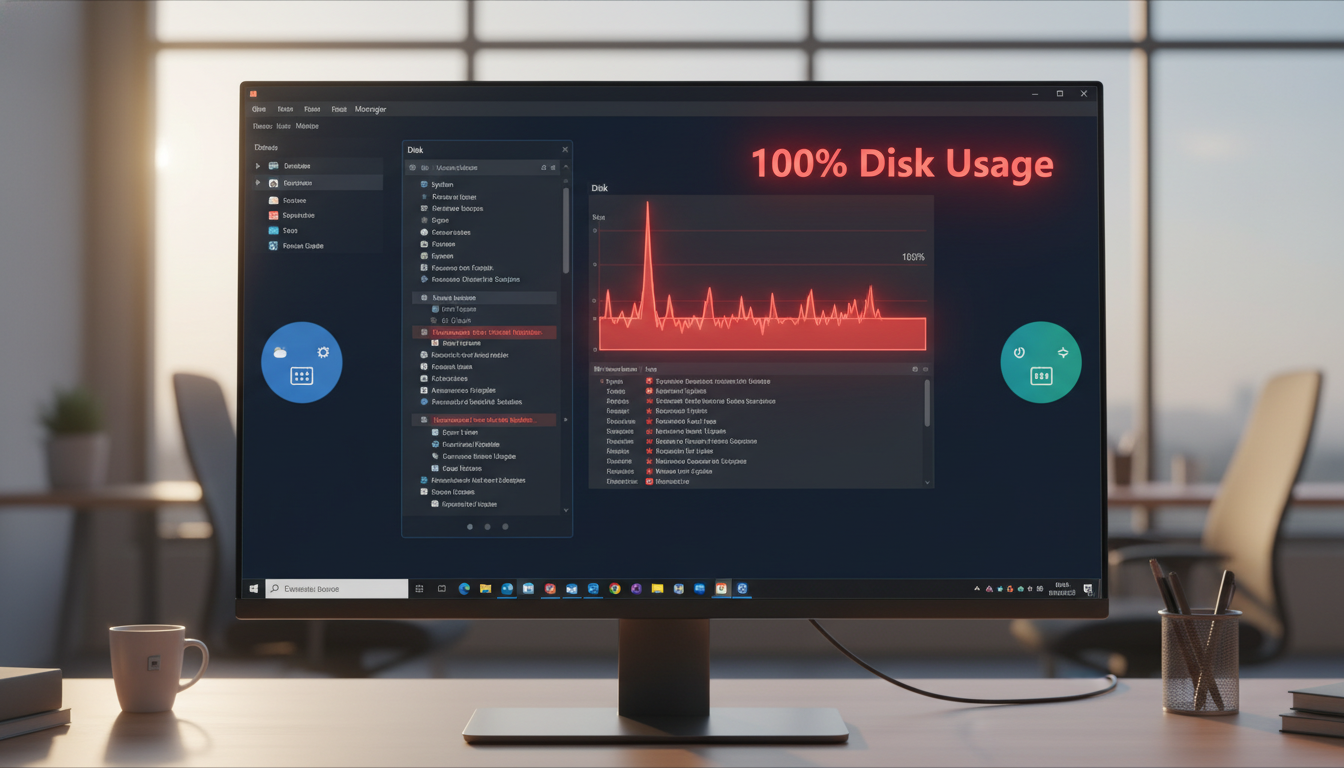
Ever felt like your Windows 11 PC is moving at a snail’s pace? Dealing with 100% disk usage can be really frustrating. It makes your system slow and apps take forever to open. Knowing why this happens is key to fixing it.
This article will show you how to tackle 100% disk usage. You’ll learn how to make your system run smoothly again. And it’s all set for 2026.
Key Takeaways
- 100% disk usage can severely affect your PC’s performance, causing it to freeze.
- Identifying the source of high disk usage is crucial for fixing the problem.
- There are quick fixes to address the issue without risking your data.
- Not all high disk usage problems are related to software; hardware may also be involved.
- Regaining performance often involves managing startup apps and freeing up disk space.
What 100% Disk Usage Means

Seeing your disk usage at 100% on Windows 11 can be really frustrating. It makes your system slow down or even freeze. This usually happens when too many processes are running in the background, like updates or indexing services.
High disk usage can make your computer feel like it’s stuck. You can’t do things quickly. Finding out why this is happening is key to making your system work better again.
Why the PC Feels Frozen
When the disk is at 100%, all apps fight for space. This can make some apps slow or unresponsive. It feels like your computer is frozen because it can’t handle all the tasks at once. If your PC also locks up in other situations, see why Windows can freeze randomly and how to fix it safely.
HDD vs SSD Differences
Knowing the difference between HDDs and SSDs helps explain disk usage issues. HDDs use mechanical parts and are slower, while SSDs use flash memory and are faster. So, SSDs usually handle high usage better, avoiding slowdowns.
| Feature | HDD (Hard Disk Drive) | SSD (Solid State Drive) |
|---|---|---|
| Speed | Slower read/write speeds | Much faster read/write speeds |
| Durability | Moving parts, more prone to failure | No moving parts, more reliable |
| Capacity | Higher storage capacity options at lower prices | Lower storage capacity options, higher prices |
| Performance under load | Prone to high disk usage issues | Handles multitasking better |
Quick Fixes
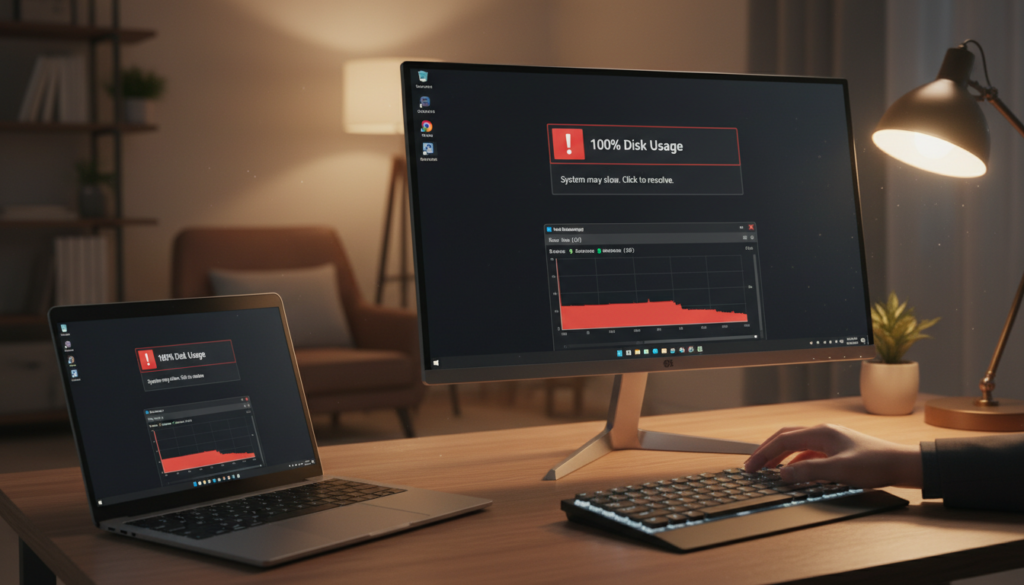
If you’re seeing windows 11 slow disk usage, there are quick steps to help. First, find out which app is slowing you down. Knowing which processes use disk resources can quickly improve things.
Find the App in Task Manager
To find the app using disk resources, open Task Manager by pressing “Ctrl + Shift + Esc”. In the Task Manager window, click on the “Processes” tab. Look for apps with high disk activity. This will show you which programs are causing the 100 disk usage windows 11 problem.
You can right-click on any apps using too much resources and choose “End Task”. This will close them.
Pause OneDrive Sync Temporarily
OneDrive can also cause high disk usage. It syncs files in the background, slowing your system. To pause syncing, right-click the OneDrive icon in the notification area and select “Pause syncing”. This can greatly reduce disk activity.
Restart and Test Again
After finding and stopping the problem apps and pausing OneDrive, restart your computer. This can reset processes and improve performance. It might lower the windows 11 slow disk usage rate.
After restarting, check Task Manager again. See if disk utilization has returned to normal percentages.
Safe Fix Steps
When dealing with high disk usage in Windows 11, following safe fix steps can lead to effective results. You can improve performance by managing startup apps, checking the Windows search indexing settings, testing SysMain, and ensuring your disk has enough free space. If your PC is generally sluggish, you can also follow this broader guide on how to fix a slow Windows PC.
Reduce Startup Apps
Limiting the number of programs that start automatically can help reduce the demand on your system’s resources. To manage startup apps:
- Right-click the taskbar and select “Task Manager.”
- Go to the “Startup” tab.
- Right-click apps you don’t need at startup and select “Disable.”
Check Windows Search Indexing
Windows search indexing can contribute to high disk activity. By checking your indexing settings, you can limit unnecessary indexing. To adjust these settings:
- Open “Settings” and go to “Privacy & security.”
- Select “Searching Windows.”
- Under “More Search Indexer Settings,” disable indexing for specific folders that do not require search functions.
Test SysMain
The SysMain service, previously known as Superfetch, may cause noticeable disk usage. You can disable it as a test to see if performance improves. To do this:
- Press “Win + R” to open the Run dialog, type “services.msc,” and hit Enter.
- Find “SysMain,” right-click, and select “Stop.”
- If you notice improvements, you can leave it disabled or enable it again using the same steps, selecting “Start.”
Free Up Disk Space
Regularly freeing up disk space is essential for maintaining performance. A full drive can severely affect how your system operates. To free up space:
- Use “Disk Cleanup” by typing it in the Start menu search.
- Select the drive you want to clean up.
- Check unnecessary files and click “OK” to delete them.
When It’s a Hardware Issue
If you’ve tried everything and the windows 11 hdd at 100 problem still exists, it might be a hardware issue. Checking your hard drive’s health is key, as ongoing high disk usage can be a sign of trouble. A SMART health check can uncover problems with your HDD.
This tool is crucial for spotting potential drive failures. It guides you on what to do next.
SMART Health Check Basics
SMART gives you insights into your hard drive’s state. It tracks things like read/write errors and temperature. When you run a SMART check, look at important stats like:
- Reallocated Sector Count
- Current Pending Sector Count
- Uncorrectable Sector Count
- Temperature
These metrics show if your hard drive is healthy or at risk.
Signs You Should Replace the Drive
Spotting warning signs early can save your data. Here are signs it’s time for a new HDD:
- Unusual noises from the drive, like clicking or grinding
- Frequent system crashes or freezes
- High read/write counts causing persistent high usage, like windows 11 hdd at 100
If you see these signs, swapping out your drive might be the safest choice. It ensures your data and system stay safe and perform well.
Conclusion
100% disk usage in Windows 11 usually comes from one or two background tasks pushing the drive too hard. Start with the quick checks in Task Manager, pause syncing if needed, then restart and test again.
If the problem keeps coming back, reduce startup apps, adjust search indexing, test SysMain, and make sure you have enough free space. And if you’re on an older HDD and you hear strange noises or see frequent freezes, treat it as a possible drive health problem and check SMART before it gets worse.
Further Reading
- Fix Windows 11 slowdowns after an update
- Troubleshoot a Windows PC that takes a long time to boot
- Read more Windows & PC fixes
For more help, you can also visit the ETechAtWork homepage, read About ETechAtWork, or use the Contact page.
FAQs
Q: What causes 100% disk usage in Windows 11?
A: High disk usage can come from many sources. Windows Update, Delivery Optimization, and OneDrive syncing are common culprits. These activities can flood the disk with data, slowing it down.
Q: How can I check which application is using the most disk resources?
A: To see which apps use the most disk space, open Task Manager. Press “Ctrl + Shift + Esc” to open it. Then, look at the “Processes” tab to find the top disk users.
Q: Is HDD better than SSD for managing disk usage?
A: SSDs are generally faster than HDDs. They handle data better. If disk usage is a big problem, switching to an SSD might help a lot.
Q: How can I reduce the amount of disk usage when using Windows 11?
A: To cut down disk usage, limit startup apps and turn off Windows search indexing. Also, pause OneDrive syncing. Disabling SysMain can help, but it’s easy to turn back on.
Q: What signs indicate a potential hardware problem with my disk?
A: Watch out for odd noises, frequent crashes, or high read/write counts. These signs might mean your drive is failing. A SMART health check can tell you more.
Q: Can I fix 100% disk usage without technical knowledge?
A: Yes, many fixes are easy to do without being a tech expert. Just manage startup apps and tweak indexing settings. These steps can make a big difference.
Q: What does SysMain do, and how does it affect disk usage?
A: SysMain, or Superfetch, loads apps into memory for quick access. But, it can also use a lot of disk space. If it’s causing trouble, you can turn it off temporarily and turn it back on later.
Q: How often should I check my disk for health?
A: It’s smart to check your disk health regularly, like if you notice slow performance or high usage. A SMART health check every month can spot issues early.